
What Happens to Stocky Purchase Orders After August 31, 2026?
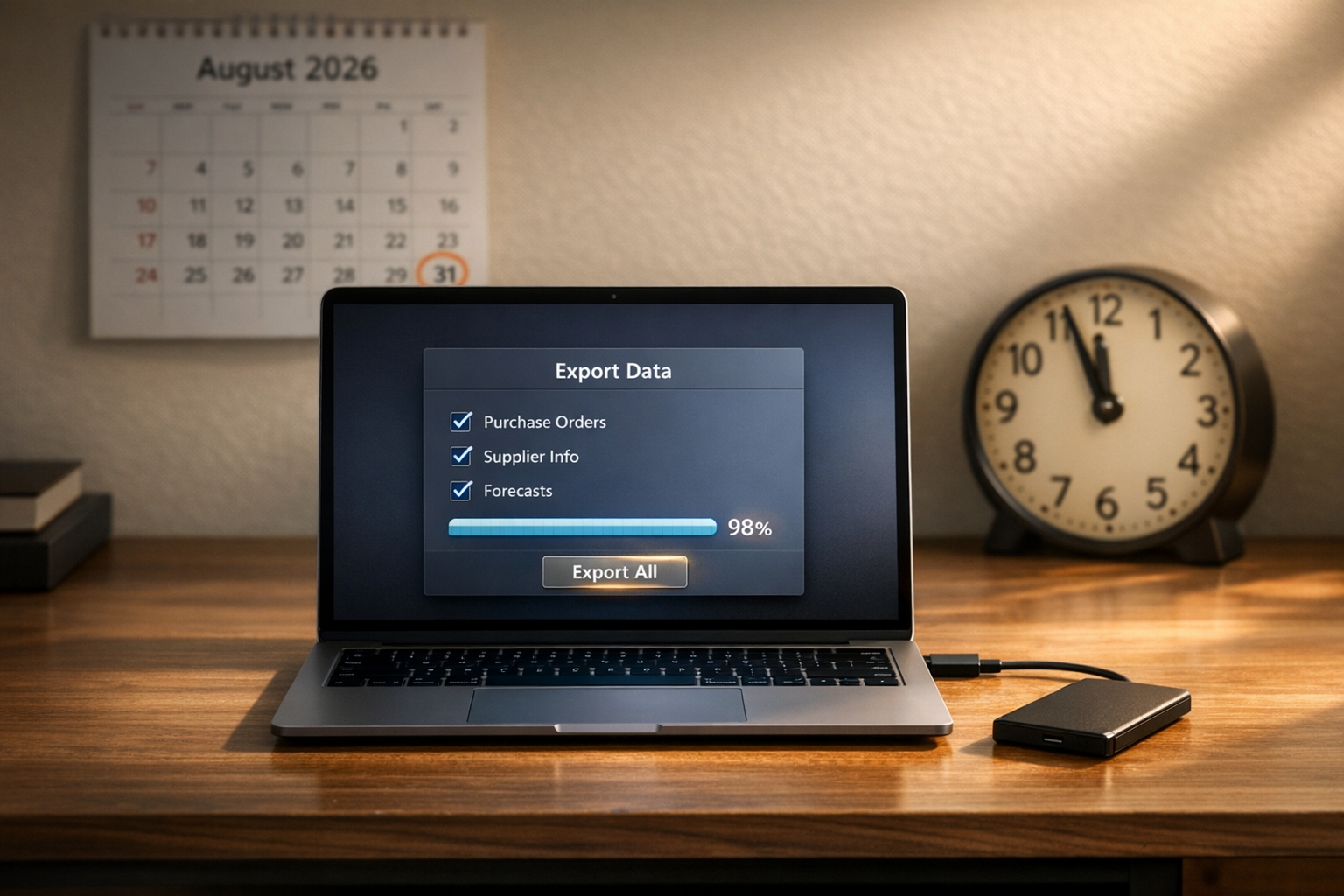
Export purchase orders, supplier info, and forecasts before Stocky shuts down on Aug 31, 2026 to avoid permanent data loss.
What Happens to Stocky Purchase Orders After August 31, 2026?
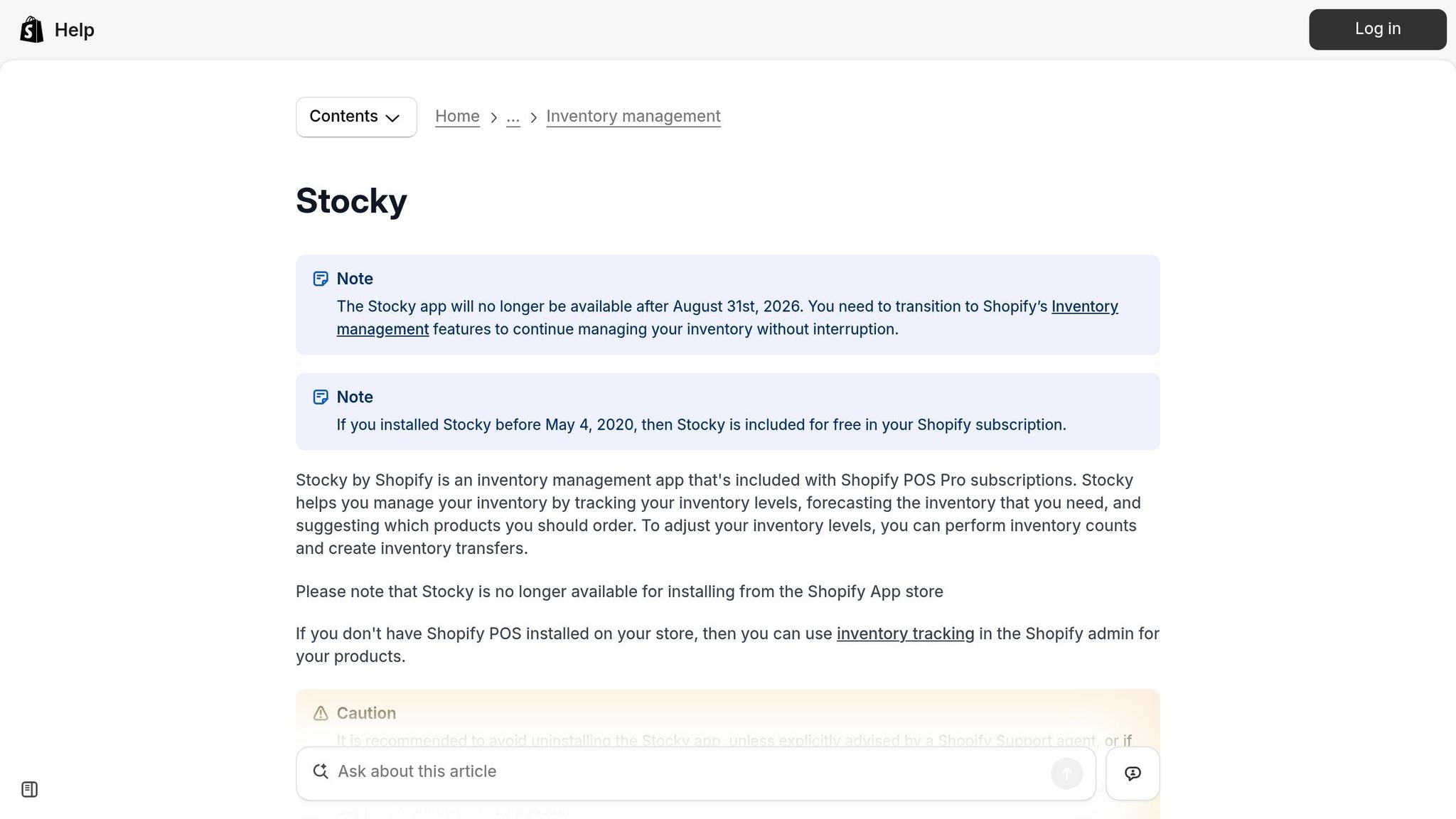
Stocky shuts down on August 31, 2026. After this date, all data stored in Stocky will be permanently inaccessible. Shopify will not transfer or recover this data for you. If you rely on Stocky for purchase orders, supplier records, or forecasting, you must act now to save your data and prepare for the transition.
Key Takeaways:
- Deadline: Export all Stocky data by August 31, 2026, or lose it forever.
- What You’ll Lose: Historical purchase orders, supplier records, demand forecasts, and stocktake data unless manually exported or documented.
- Action Plan:
- Export purchase orders and stocktake data as CSV files.
- Manually document supplier details (names, contacts, lead times, MOQs).
- Transition workflows to Shopify Admin or third-party tools like Forstock.
Shopify Admin provides basic inventory management but lacks advanced features like demand forecasting and supplier lead-time tracking. For more complex needs, consider using tools like Forstock to fill these gaps.
Start the migration process now. It takes 8–12 weeks to fully transition your data and workflows.
What Happens to Stocky Purchase Orders After August 31, 2026?
Loss of Access to Stocky and Its Data
Starting August 31, 2026, Stocky will no longer be available. This means its interface, API, and all stored data will be permanently inaccessible, with no way to recover them.
"The Stocky API stops working on August 31, 2026. If you have custom integrations or third-party tools connected to Stocky, they'll need to be updated to use Shopify's Admin API." - Management One
This shutdown affects all tools and integrations relying on Stocky's API, rendering them non-functional. The loss of access will directly impact how purchase orders and supplier records are managed.
What Happens to Purchase Orders and Supplier Records
Unlike Shopify Admin, which retains core inventory levels, data exclusive to Stocky will not automatically transfer over. This makes exporting your data before the deadline absolutely essential.
Here’s a breakdown of what happens to key data:
| Data Type | Status After August 31, 2026 | Action Required |
|---|---|---|
| Core Inventory Levels | Safe (stored in Shopify Admin) | None |
| Historical Purchase Orders | Lost | Export to CSV manually |
| Supplier Records | Lost | Manual documentation |
| Demand Forecast Settings | Lost | Screenshots and manual notes |
| Stocktake/Audit Records | Lost | Export to CSV manually |
Supplier records require particular attention. Information such as contact names, lead times, minimum order quantities (MOQs), and payment terms must be documented before the deadline.
"Shopify says suppliers cannot be exported from Stocky. Document supplier names, contacts, lead times, MOQs, and vendor/SKU relationships before the deadline." - Synplex
Failing to preserve this data can severely disrupt your supplier relationships and operational efficiency.
Business Risks of Losing Stocky Data
Merchants who don’t act in time face serious operational challenges. Without historical purchase order data, you lose critical insights into past pricing, quantities, and vendor performance - information essential for negotiating contracts and understanding margin changes.
The loss of demand forecasting capabilities compounds the problem. As Pasilobus notes:
"The features that turned inventory from 'react to running out' into 'see it coming' - like demand forecasting based on sales velocity - are gone in the native system."
For businesses managing multiple suppliers, losing supplier records is particularly problematic. Reconstructing lead times, MOQs, and contact details from memory or scattered communications could take weeks. Mistakes during this process can lead to stockouts, budgeting errors, and disruptions in supplier workflows.
These risks highlight the importance of exporting your data well before the deadline to avoid operational setbacks.
sbb-itb-f0fc809
Forthcast: Shopify Is Shutting Down Stocky - The Best Alternative for $19.99/Month (2026)

Stocky vs. Shopify Admin: Purchase Order Feature Comparison
Stocky vs. Shopify Admin: Purchase Order Feature Comparison
What Shopify Admin Can Do for Purchase Orders
Since mid-2025, Shopify has been integrating core Stocky features into its native Admin platform, so it’s not starting entirely from scratch. Currently, Shopify Admin allows you to create purchase orders, assign them to suppliers, and mark shipments as received. It also handles basic inventory transfers and monitors stock levels across your store. However, when compared to Stocky, Shopify Admin is still missing some of the more advanced tools.
Where Shopify Admin Falls Short Compared to Stocky
The most noticeable gap lies in predictive capabilities. As Ohavah points out:
"Shopify's native PO feature lets you create purchase orders, assign them to suppliers, and mark items as received... The main difference is that you will not get demand-based product suggestions."
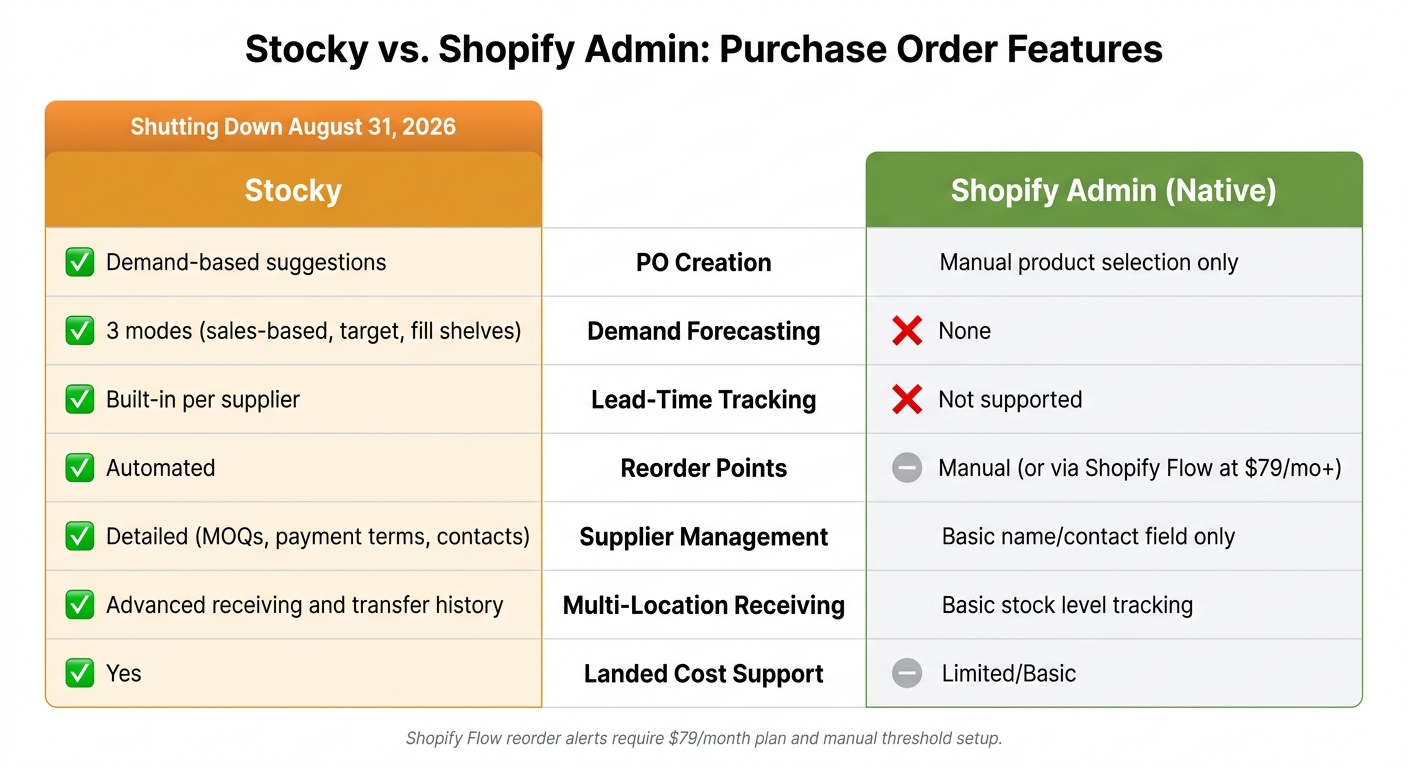
Stocky provided three forecasting modes - fill shelves, target stock levels, and sales-based predictions - that Shopify Admin doesn’t offer. Other missing features include automated reorder points, supplier-specific lead-time tracking, and detailed supplier records like minimum order quantities (MOQs) and payment terms. To break it down:
| Feature | Stocky | Shopify Admin (Native) |
|---|---|---|
| PO Creation | Demand-based suggestions | Manual product selection only |
| Demand Forecasting | 3 modes (sales-based, target, fill shelves) | None |
| Lead-Time Tracking | Built-in per supplier | Not supported |
| Reorder Points | Automated | Manual (or via Shopify Flow) |
| Supplier Management | Detailed (MOQs, payment terms, contacts) | Basic name/contact field only |
| Multi-Location Receiving | Advanced receiving and transfer history | Basic stock level tracking |
| Landed Cost Support | Yes | Limited/Basic |
While Shopify Flow can mimic automated reorder alerts, it’s only available on plans starting at $79/month. Even then, you’ll need to manually set thresholds, as the system doesn’t provide suggestions based on sales trends or velocity.
These limitations can be especially challenging for merchants with more complex supply chains.
Specific Challenges for US Merchants Without Stocky
For merchants in the US managing intricate supply chains, the absence of lead-time tracking is a major concern. Shopify Admin doesn’t account for delivery delays when flagging low stock. If you’re sourcing products overseas with lead times of 190 days or more, it’s difficult to determine the right time to reorder.
Multi-location businesses face another issue. Although Shopify Admin monitors stock levels for individual locations, it doesn’t offer a consolidated low-stock view across all locations, as Stocky did. This makes it harder for merchants with multiple warehouses or retail stores to anticipate stockouts - issues often only become apparent after they occur. On top of that, reconciling partial shipments or split-location orders manually adds extra complexity to day-to-day operations.
How to Export and Save Your Stocky Data Before the Shutdown
You have until August 31, 2026, to export your Stocky data before it becomes permanently inaccessible. Missing this deadline could result in the loss of critical records. To avoid last-minute issues, start the process by early June 2026. This will give you enough time - about 8–12 weeks - for migration, data cleanup, and testing.
How to Export Purchase Orders and Inventory Data
Exporting purchase orders and inventory records from Stocky is straightforward. Go to Stocky > Purchase Orders > Export All to download a CSV file. This file will include purchase order numbers, item details, quantities, unit costs, and dates. For a complete record, don't forget to export stocktake data and inventory adjustment history separately. These files are essential for any future audits or inquiries about past discrepancies.
Before archiving your data, compare Stocky's cost prices with those in Shopify Admin. Since Stocky may store cost data independently, mismatches can occur, potentially affecting your margins. To ensure accuracy, cross-check these figures against recent supplier invoices.
How to Document Supplier Records and Lead Times Manually
Unfortunately, supplier records cannot be exported from Stocky, as confirmed by Shopify. To preserve this information, you'll need to document it manually. Create a master spreadsheet that includes:
- Supplier names and contact details
- Lead times
- Minimum order quantities (MOQs)
- Vendor-to-SKU relationships
- Payment terms and order multiples
- Preferred buying windows
For reorder points and demand forecasting settings, screenshots are your best option. Capture SKU-level configurations in Stocky, as this data won't be included in any CSV export.
"Shopify says suppliers cannot be exported from Stocky. Document supplier names, contacts, lead times, MOQs, and vendor/SKU relationships before the deadline." - Synplex
Organizing Data for Multi-Location Operations
If your business spans multiple warehouses or retail locations, organizing your exported data by location is key to optimizing multi-warehouse inventory. For example, when downloading transfer records and purchase order history, save them in folders named by the receiving destination. This will simplify the process of mapping SKUs to their correct locations in your new system.
Take this opportunity to tidy up your data. Remove inactive suppliers, archive discontinued SKUs, and fix any inconsistencies. Once your data is cleaned and organized, you can start rebuilding your purchase order workflows in Shopify Admin and Forstock.
| Data Type | Exportable from Stocky? | Action Required |
|---|---|---|
| Purchase Orders | Yes (CSV) | Export via Stocky > Purchase Orders > Export All |
| Stocktakes & Adjustment History | Yes (CSV) | Export for audit trail and reconciliation |
| Supplier Contact Info | No | Manually record in a spreadsheet |
| Lead Times & MOQs | No | Document manually per supplier |
| Reorder Points & Forecasting Settings | No | Screenshot SKU-level settings |
| Cost Prices | Partial | Audit against recent invoices |
Rebuilding Purchase Order Workflows with Shopify Admin and Forstock
Once you’ve exported and organized your data, it’s time to rebuild your purchase order (PO) workflows. A smart way to approach this is by dividing tasks: handle the essentials with Shopify Admin and rely on Forstock for more advanced features.
Using Shopify Admin for Core Inventory Tasks
Shopify Admin is equipped to manage basic inventory needs, including creating purchase orders, tracking orders, and updating inventory. When you mark items as received, Shopify automatically updates your available stock and adjusts the incoming inventory count. You can also manage transfers between different locations. However, Shopify Admin does not include features like demand forecasting, automated reorder points, or tracking supplier lead times.
"Shopify's native PO feature lets you create purchase orders, assign them to suppliers, and mark items as received. If you used Stocky primarily to create and track POs, the native version covers the core workflow." - Ohavah
For tasks that go beyond these basics, Forstock steps in with advanced automation and tools.
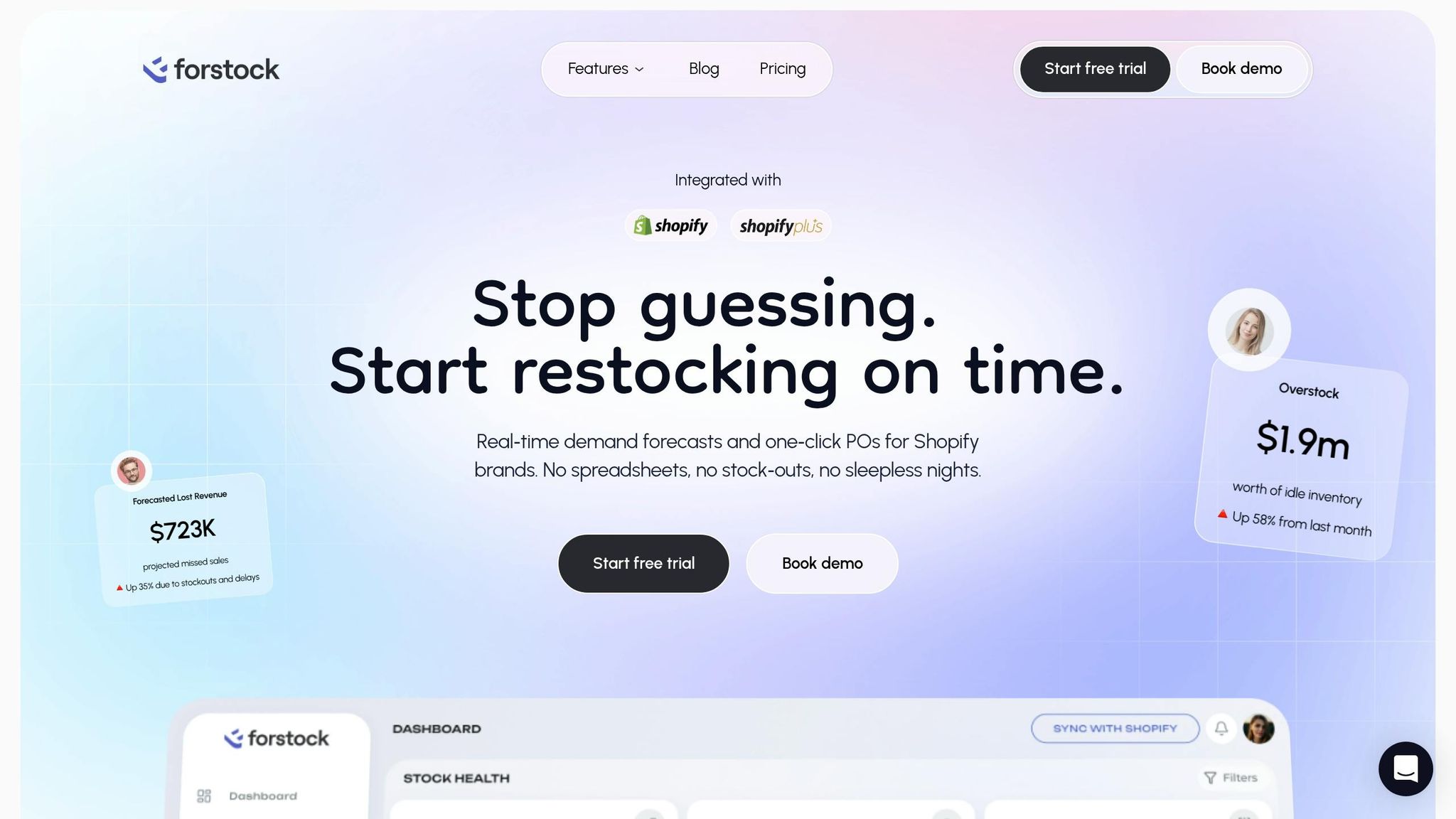
Using Forstock for Advanced Purchase Order Management
Forstock builds on Shopify Admin’s core functionality by offering a centralized dashboard for more sophisticated PO management. Its AI-powered Reorder Table examines sales trends, supplier lead times, and seasonal factors to suggest replenishment strategies before you run out of stock. Additionally, Forstock simplifies landed cost calculations, incorporating freight and duties into your inventory costs. Merchants using Forstock’s automated PO creation tools report saving over 10 hours each week on supply chain management.
Recreating Supplier and Lead-Time Records in Forstock
To fully utilize Forstock, input detailed supplier information, including names, contact details, lead times, minimum order quantities (MOQs), payment terms, and vendor-to-SKU relationships. It’s also a good opportunity to update lead times based on recent supplier performance rather than relying solely on historical data.
"A migration is your one opportunity to clean house. Before importing, audit your supplier list - remove suppliers you no longer use, update lead times to reflect actual recent performance." - Canopy
Once your supplier records are updated, you can streamline multi-location inventory management with Forstock’s tools.
Setting Up Multi-Location Inventory Tracking in Forstock
For businesses with multiple locations, ensure all Shopify locations are synced in Forstock. Configure location-specific receiving so inventory is automatically directed to the correct destination. During setup, conduct a full stocktake to confirm that the system’s recorded inventory levels match your actual stock.
Keeping Financial and Operational Records Accurate Post-Stocky
It’s important to note that Shopify Admin’s receiving workflow doesn’t always update unit costs - it typically adjusts only quantities. To maintain accurate margins, configure Forstock to update costs upon receipt. Additionally, Shopify Admin only retains 180 days of inventory adjustment history. Forstock’s extended data visibility is particularly useful for businesses that need to analyze trends over longer periods, such as seasonal operations.
Conclusion: Steps to Take Before Stocky Shuts Down
August 31, 2026, is a firm deadline. After that date, all Stocky data will be permanently inaccessible, as Shopify does not offer any post-shutdown export options. The clock is ticking, so take action now.
Start by exporting your entire purchase order (PO) history. Go to Stocky > Purchase Orders > Export All, and save the file as a CSV. Then, manually record your supplier details - names, contacts, lead times, minimum order quantities (MOQs), and payment terms. Begin your migration process as soon as possible.
"A proper migration takes 8-12 weeks... Rushing the process leads to data accuracy problems that persist for months." - Canopy
Treat this migration as an opportunity to clean and update your data. Take Bailey & Coco as an example: during their 10-week migration in early 2026, they uncovered outdated cost prices that had been understating their purchase costs by £8,400 per container order. They also eliminated 17 inactive suppliers and archived 340 discontinued SKUs, improving the accuracy of their forecasting.
Once your data is secure, transition to a dual-system approach for your operations. After cleaning and exporting your data, streamline your workflow by using Shopify Admin for basic PO creation and receiving, while evaluating Shopify purchase order apps, while leveraging Forstock for advanced tasks like AI-powered replenishment, supplier lead time tracking, landed cost calculations, and multi-location inventory management. With plans starting at $79/month, Forstock offers a cost-effective solution for businesses of all sizes.
Your main objective before August 31 is clear: prevent an operational crisis caused by the shutdown.
FAQs
What data should I export first before August 31, 2026?
When preparing for accounting and audits, focus on exporting purchase orders, stocktake records, and product cost data as CSV files. Since Stocky doesn't support exporting supplier data, you'll need to manually document essential details like supplier names, contact information, lead times, and minimum order quantities (MOQs). Additionally, make sure to save critical inventory and sales reports, such as ABC analysis and transfer history. To ensure these files are always accessible, store them securely in a cloud drive.
How do I save my supplier lead times and MOQs if they can’t be exported?
Since Stocky doesn't allow you to export supplier settings, it's essential to manually document your supplier information before the platform shuts down on August 31, 2026. A spreadsheet is a simple and effective way to organize this data.
Make sure to include the following key details:
- Supplier names
- Contact information
- Minimum order quantities (MOQs)
- Lead times
To determine lead times, review your purchase order history by analyzing the exported CSV files. Once you've gathered everything, transfer this data into your new system. This step is crucial for maintaining accurate forecasting and reordering processes.
What should I do if I have multi-location POs and split shipments?
If you manage purchase orders across multiple locations or deal with split shipments, switching to a platform like Forstock can simplify your workflow. With Forstock, you can:
- Split purchase orders across different locations
- Track partial shipments with ease
- Keep orders open until all items are received
To avoid potential issues, make sure to document supplier terms - such as whether they handle consolidated or separate orders - before August 31, 2026. Also, standardize your multi-location data to maintain seamless operations.
Keep reading
Try Forstock free for 14 days.
AI-powered demand forecasting and reorder automation for Shopify brands. No credit card required.