

If you're still relying on Stocky for inventory management, time is running out. Shopify will fully shut down Stocky on August 31, 2026, and all stored data will become permanently inaccessible. Here's what you need to do immediately:
- Export Your Data: Save purchase orders, stocktakes, and inventory reports as CSV files directly from Stocky.
- Manually Backup Non-Exportable Data: Record supplier contacts, lead times, pricing history, and reorder rules manually or with screenshots. This is also a good time to calculate reorder points for your top-selling items.
- Organize Your Files: Use a clear folder structure and consistent naming to store your data securely.
- Validate and Prepare for Migration: Check your files for errors and prepare them for use in an alternative tool like Forstock.
Act now to avoid losing vital inventory data. Once Stocky shuts down, recovery won't be possible. Follow these steps today to ensure your business transitions smoothly.
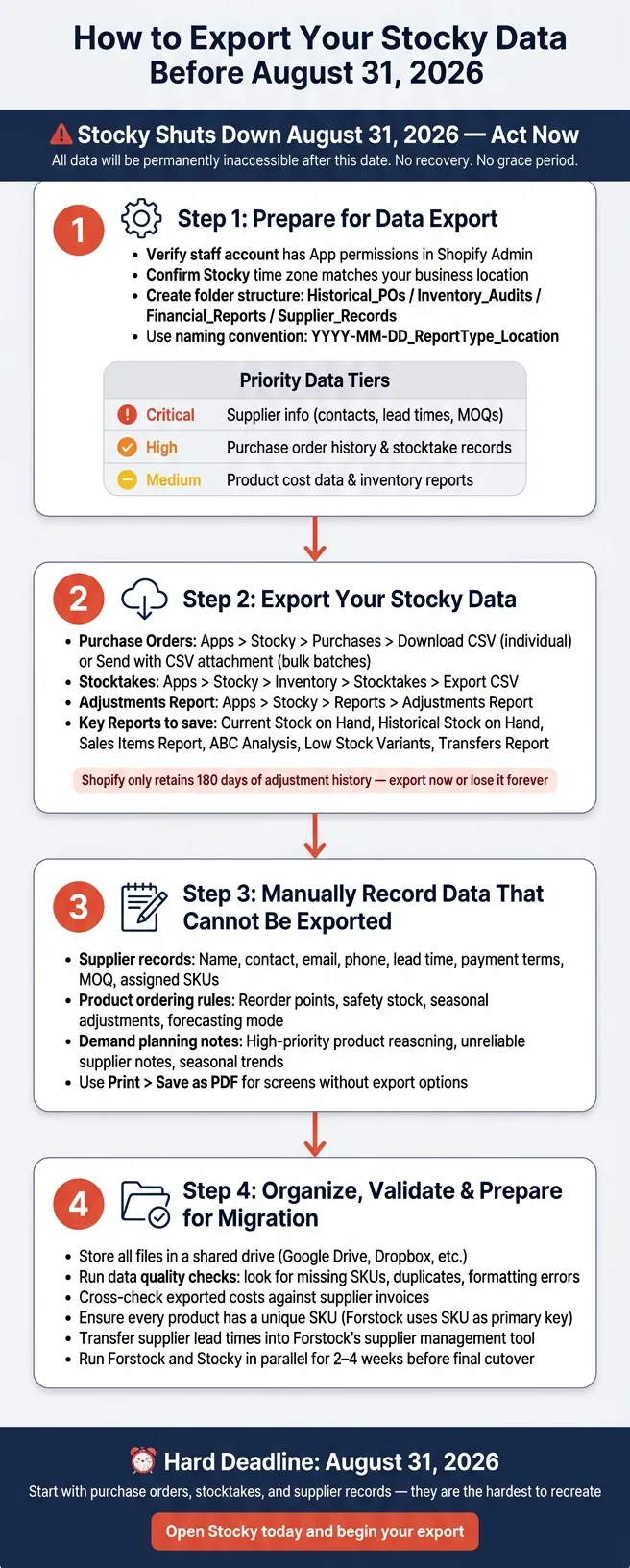
How to Export Your Stocky Data Before the August 2026 Shutdown
Step 1: Prepare for Data Export
Getting everything in place before exporting files is crucial. Skipping this step could lead to mismatched dates, missing records, or even lost files.
Check User Permissions and Time Zone Settings
First, make sure the staff account handling the export has App permissions enabled in Shopify Admin. Without this, you won’t be able to access Stocky's reporting section, where all the CSV exports are stored. To verify permissions, navigate to Shopify Admin > Settings > Users and Permissions, select the appropriate staff account, and confirm that app access is enabled.
Next, ensure that Stocky’s time zone matches your U.S. business location. Mismatched settings can cause date discrepancies in reports, complicating tasks like tax reconciliation or inventory audits. Double-check this in Shopify Admin settings before exporting any data.
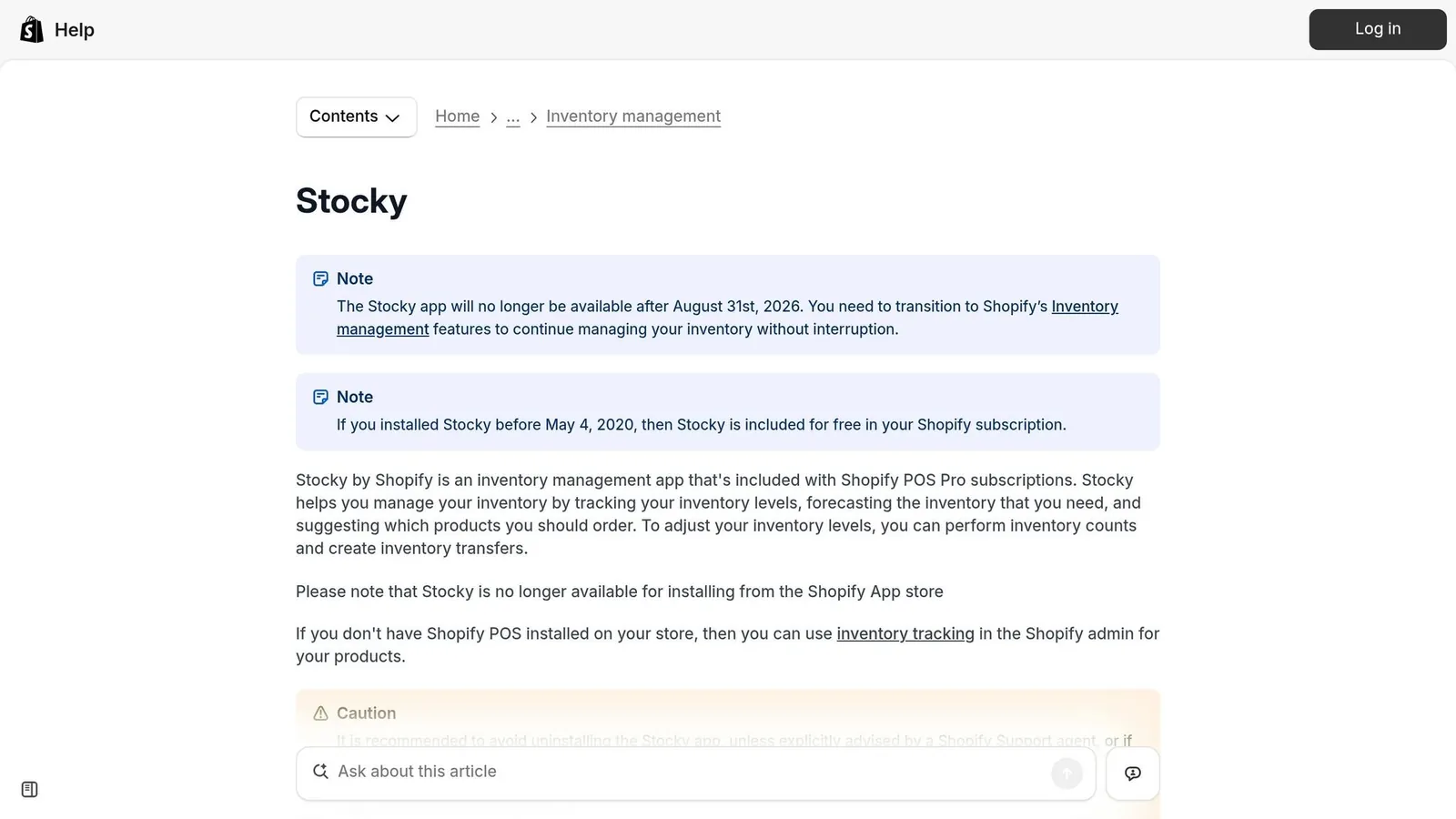
⚠️ Important: Do not uninstall Stocky to fix permission issues. Since the app was removed from the Shopify App Store on February 2, 2026, it cannot be reinstalled. If the problem persists, reach out to Shopify Support.
Set Up a File Naming and Storage System
Once permissions are confirmed, create a shared folder - something like "Stocky Shutdown Exports" - and organize it with subfolders for categories such as Historical_POs, Inventory_Audits, Financial_Reports, and Supplier_Records.
Use a consistent naming convention for your files, such as YYYY-MM-DD_ReportType_Location. This will make it easier to locate specific files later.
"Store the files in a shared drive (Google Drive, Dropbox, whatever your team uses). Label them clearly by date and report type. You'll thank yourself during tax season or inventory audits." - Fabrikatör
These steps will help safeguard your data and make the export process smoother.
Prioritize Which Data to Export First
Decide which data to export first based on its importance and the risks of losing it.
| Priority | Data Type | Risk if Lost |
|---|---|---|
| Critical | Supplier info (contacts, lead times, MOQs) | Hard to reconstruct; no export option available |
| High | Purchase order history | Essential for accounting and audits |
| High | Stocktake records | Essential for accounting and audits |
| Medium | Product cost data | Recoverable but time-intensive |
| Medium | inventory reports and cloud tools (ABC analysis, low stock) | Useful for long-term planning |
Start with supplier information, even though it requires manual effort. Stocky doesn’t offer an export option for this data, and it’s the hardest to recreate later. After that, focus on purchase orders and stocktake records, which are critical for accounting and audits.
Once you’ve prioritized your data, you’re ready to move on to the export process.
sbb-itb-f0fc809
Step 2: Export Your Stocky Data
Now that you've organized your folders and set priorities, it's time to start exporting your data. This step ensures all vital information is securely saved. Follow the instructions below to export various data types, including detailed reports.
Export Purchase Orders
Stocky offers two ways to export purchase orders, both resulting in a CSV file containing order history, quantities, unit costs, vendor details, delivery, and payment statuses.
| Export Method | How To | Best For |
|---|---|---|
| Direct Export | Go to Apps > Stocky > Purchases, select the specific Purchase Order, and click Download CSV. | Exporting a small number of individual purchase orders |
| Email with CSV Attachment | Go to Apps > Stocky > Purchases, select the specific Purchase Order, click Send, check the "Attach CSV" box, and hit Send. | Handling and archiving large batches of purchase orders |
"If you have hundreds of POs, option A [Email with CSV] lets you batch-send them to yourself. Set up a dedicated email folder and work through them systematically." - Fabrikatör
Once downloaded, save each CSV file in the corresponding subfolder you created earlier. Additionally, you can export a Purchase Orders Report from Stocky's Reports dropdown. This report provides a comprehensive overview of multiple orders, including arrival destinations, delivery statuses, and payment statuses.
Export Stocktakes and Inventory Adjustments
To export stocktake records, go to Apps > Stocky > Inventory > Stocktakes, open the desired record, and click CSV or Export > CSV. These files include SKU, barcode, expected vs. actual stock levels, retail and cost prices, and adjustment totals - everything you need for inventory valuation and shrink analysis.
For adjustment logs, navigate to the Reports dropdown and select Adjustments Report. This report captures details such as dates, reasons for changes, and the staff member responsible. Keep in mind that manual adjustments synced through "Manual" stocktakes are only found in the stocktake CSV, not in the adjustments report.
"Shopify's native inventory tracking only retains 180 days of adjustment history. That means once Stocky is gone... you have no way to look at inventory trends over longer periods." - Stockful Blog
Export Key Reports
Access all exportable reports by going to Apps > Stocky > Reports. These reports are available in both CSV and PDF formats. Below is a table of the most useful ones to save before August 31, 2026:
| Report | Data Included |
|---|---|
| Current Stock on Hand | Current inventory value and cost across all locations |
| Historical Stock on Hand | Past inventory values for trend and seasonal analysis |
| Sales Items Report | Detailed line-item sales data |
| ABC Analysis | Product grades (A, B, or C) based on 8-week sales history |
| Low Stock Variants | Days of stock remaining and suggested reorder dates |
| Transfers Report | Status, origin, and destination of stock movements |
Make sure to export all these reports now. Once Stocky shuts down, this data will no longer be available.
Step 3: Record Data That Cannot Be Exported
Some critical information, like supplier records, ordering rules, and demand planning settings, cannot be exported. After the August 31, 2026 shutdown, this data will be inaccessible unless you manually capture it now. Here’s how to handle this step before moving on to organizing your data.
Rebuild Your Supplier Records
To preserve supplier information, create a master spreadsheet. Include columns such as:
- Supplier Name
- Primary Contact
- Phone Number
- Lead Time (days)
- Payment Terms
- MOQ (Minimum Order Quantity)
- Assigned SKUs
Use your previously organized folders to ensure consistency. For lead times, refer to the Purchase Order CSVs you exported in Step 2. Calculate the time between order placement and receipt for accurate records.
"Supplier information - this has to be manually recreated in whatever tool you move to... Screenshot the details or type them into a spreadsheet manually." - Bahadır Efeoglu, Fabrikatör
Document Product Ordering Rules
Stocky’s settings for reorder points, safety stock levels, and min/max thresholds are not exportable. These details are stored only within the app, and Shopify Admin does not automatically capture them.
Focus on your priority SKUs (as outlined in Step 1). For each product, document:
- Reorder Point
- Safety Stock
- Seasonal Adjustments
- Forecasting mode in use (e.g., "Fill Shelves", "Target Stock Level", "Last X Days", or "Same Period Last Year")
This ensures you retain the logic behind reorder suggestions.
"Take the 15 minutes to enter accurate lead times for each supplier - it's the single highest-impact configuration step." - Sensible Tools Blog
Save Your Demand Planning Data
Stocky’s forecasting features, like ABC product grades and demand planning settings, also cannot be exported. While Step 2 covered exporting the ABC Analysis report and Historical Stock on Hand data, you should now manually document the reasoning behind your settings. This includes:
- Why specific products are marked as high-priority
- Notes on suppliers with unreliable lead times
- Seasonal trends you account for
For screens without an export option, use your browser’s Print > Save as PDF feature to capture a snapshot. With these manual records secured, you’ll have a more complete inventory backup.
Step 4: Organize and Validate Your Data
Once you've exported and recorded your Stocky data, it's time to organize and validate it. This step is essential to ensure a smooth transition to Forstock. Skipping it could lead to data errors that disrupt your workflow.
Set Up a Clear Folder Structure
Start by storing all your files in a shared drive so your team can access them easily, especially during audits or tax season. Stick to a consistent naming format that includes the export date and report type. For example: 2026-05-15_ABC_Analysis.csv or 2026-07-30_Purchase_Orders.csv. Organize these files into well-labeled subfolders for quick reference:
| Folder Name | What Goes Inside |
|---|---|
/Historical_POs/ |
Purchase order CSV exports |
/Inventory_Audits/ |
Stocktake and adjustment CSVs |
/Analytics_Reports/ |
ABC Analysis, Low Stock, and other report exports |
/Supplier_Database/ |
Manual supplier spreadsheets and screenshots |
/Financial_Records/ |
Product cost data CSVs |
Once your folders are set up, check the integrity of your files before importing them to Forstock.
Run Data Quality Checks
Before moving forward, inspect your files for common issues like missing SKUs, duplicate entries, or formatting errors. These can cause problems during the import process.
Take a random sample of your purchase order CSVs and compare them to the line items displayed in Stocky. For stocktake files, verify that the "Actual vs. Expected" totals match Stocky's data. Additionally, cross-check your exported product cost data against the latest supplier invoices. It’s worth noting that Stocky's stored cost-per-item values sometimes differ from Shopify Admin records.
If you find negative stock levels or duplicate SKUs, address these issues directly in Shopify Admin before performing your final export. This ensures your saved files are clean and ready for use.
Format Data for Forstock
Forstock integrates directly with Shopify, meaning your inventory levels and product catalog will sync automatically. However, your exported CSVs still need some preparation to be fully functional. Make sure every product has a unique SKU, as Forstock uses SKUs as the primary key to map products accurately.
For supplier records, transfer the data from your manual spreadsheet (created in Step 3) into Forstock's supplier management tool. Pay close attention to lead times - accurate lead times are critical for Forstock's demand forecasting to generate reliable reorder suggestions.
"Lead time is the foundation of accurate forecasting. If you install a new tool and leave all lead times at the default, your reorder recommendations will be wrong from day one." - Sensible Tools
After importing your data, consider running both systems in parallel for 2 to 4 weeks. This allows you to compare Forstock's reorder suggestions against Stocky's recommendations, ensuring everything is functioning as expected before Stocky shuts down on August 31, 2026.
Conclusion: Final Steps to Secure Your Inventory Data
To ensure your inventory data is protected, follow these steps: export purchase orders, stocktakes, and key reports as CSV files, manually document supplier details and ordering rules, and organize, validate, and format everything for a smooth transition to Forstock.
Time is of the essence - August 31, 2026, is a hard deadline. After this date, Stocky will no longer function. Its APIs will shut down, and any data left behind will be permanently inaccessible. There’s no recovery option, no grace period, and no second chances.
As Bahadır Efeoglu aptly stated:
"The biggest risk isn't the shutdown itself - it's procrastination. Export your data this week. Not next month. Not 'before the deadline.' This week."
If you haven’t started yet, don’t wait. Open Stocky today and begin with the most critical data: purchase order history, stocktake records, and supplier documentation. These are the hardest to recreate if lost, so tackle them immediately.
One last tip: secure your data now and prepare your team to take full advantage of Forstock’s Shopify integration, demand forecasting, and supplier management tools. It’s time to streamline your inventory operations and move forward with confidence.
FAQs
What data will I lose if I don’t export before August 31, 2026?
If you don’t export your data by August 31, 2026, you’ll lose access to key records such as purchase orders, stocktakes, inventory reports (e.g., stock on hand, low stock, adjustments, sales), and transfer history. While these can be exported before the deadline, they won’t be available after the shutdown.
Additionally, supplier information and related data cannot be exported automatically. You’ll need to save this information manually, or it will be permanently lost.
Which Stocky data can’t be exported, and how do I save it anyway?
Data that cannot be exported from Stocky includes details like supplier information, lead times, and case pack sizes. To avoid losing this essential information before the platform shuts down on August 31, 2026, make sure to manually document or recreate it in your preferred system. This step is crucial to maintaining accurate inventory and supplier records despite Stocky's export restrictions.
How do I check my CSV exports for errors before importing them?
To review your CSV exports for errors, open the files in a spreadsheet tool like Excel or Google Sheets. Check that all essential data - like purchase orders, stocktakes, and inventory reports - is present, properly formatted, and free of gaps or irregularities. Taking the time to manually inspect your data helps ensure it's accurate and prepared for importing into your new system.