
If you’ve been using Stocky for purchase orders in Shopify, it’s time to plan your next steps. Stocky will no longer be available after August 31, 2026, and any unexported data will be permanently lost. Shopify Admin has integrated some basic PO features, but it lacks advanced tools like demand forecasting, supplier tracking, and automated reorder points.
Here’s what you need to know:
- Stocky Shutdown Timeline: Removed from the Shopify App Store on February 2, 2026, and fully deactivated by August 31, 2026.
- Challenges with Shopify Admin: Limited supplier management, no AI-driven forecasting, and no landed cost tracking.
- Solution: Combine Shopify Admin with Forstock for smarter purchase order workflows, including AI-based forecasting, detailed supplier records, and accurate cost tracking.
Key Steps to Transition:
- Export all data from Stocky before the shutdown.
- Set up Shopify Admin for supplier and inventory management.
- Use Forstock for demand forecasting, automated POs, and landed cost calculations.
- Run a parallel workflow to test accuracy before fully switching.
How to Automate Forecasting and Purchase Order Creation for your Shopify Store

sbb-itb-f0fc809
What a Solid Shopify Purchase Order Workflow Needs
A purchase order workflow isn’t just about sending a document to a supplier. It’s a system that handles supplier details, timing, quantities, receiving, and cost tracking. To make this process work effectively in Shopify, there are a few key components you’ll need to get right.
Supplier Master Data
Building detailed supplier records is step one. These should include payment terms, pricing details, and lead times. Without this information, you risk sending orders with incorrect pricing, missing payments, or experiencing shipping delays.
Shopify Admin offers basic tools for supplier management, but it has limitations. For instance, the vendor field only supports a single price per product, which can be restrictive. Creating a more detailed supplier profile manually can help you manage multiple pricing options, handle case pack orders, and track payments more effectively. These enhancements make your purchase order workflow better suited to your inventory needs.
"We were juggling dozens of suppliers and purchase orders every month, and things kept slipping through the cracks. With Forstock, we can create POs in minutes, track supplier performance, and forecast demand without the guesswork." - Daniel, Supply Chain Manager
Lead Times and Reorder Points
Lead times - the time between placing an order and receiving it - play a big role in maintaining the right inventory levels. Pairing this with accurate reorder points ensures you’re not overstocked or running out of stock. However, calculating these manually can be tricky, especially when demand fluctuates or suppliers have inconsistent delivery times.
AI-driven forecasting tools can take the guesswork out of this process. By analyzing past sales and supplier performance, these tools automatically calculate the best reorder points, saving you time and helping you avoid costly mistakes.
"Forstock has been great. We're preventing stockouts that were costing us $50K monthly. The AI predictions are incredibly accurate." - Matt, Operations Lead at TechGear
Case Packs, MOQs, and Cost Breaks
Suppliers often sell items in case packs, enforce minimum order quantities (MOQs), or offer discounts for larger orders. Ignoring these can lead to ordering the wrong amounts or misjudging costs. Incorporating landed cost calculations - factoring in freight and duties - when creating purchase orders ensures your margin analysis is accurate from the start.
Multi-Location Receiving and Inventory Updates
If you operate multiple warehouses, stores, or fulfillment centers, your purchase orders might need to be split across locations. A strong workflow allows you to assign specific items to different locations and updates your Shopify inventory automatically when items arrive. It also accounts for partial shipments, keeping the remaining order open until all items are received. This ensures your "incoming" and "available" inventory counts stay accurate across all sales channels.
Cost Tracking and Adjustments
The final cost of an order often differs from the unit price because of freight charges, duties, and discounts. Tracking these landed costs during purchase order creation ensures your margins are based on real numbers.
"We reduced excess inventory by 45% and freed up $150,000 in working capital." - Jason, Co-founder at HomeGoods
Where Shopify Admin's Native PO Features Fall Short
What Shopify's Native Purchase Orders Can Do
Shopify Admin provides some useful tools for handling purchase orders (POs). You can create and edit POs, store supplier details, and set payment terms - all from within the admin panel. It also generates PDFs for vendors and updates your inventory automatically. When you create a PO, Shopify adjusts your "incoming" inventory count, and once you mark items as received, it updates your "available" stock. You can even manage partial shipments and flag damaged or missing items using "Accepted" and "Rejected" columns.
"With Shopify, you get purchase orders, inventory receipts, and supplier records in the same admin you use to run your store. No extra apps, APIs, or training." - Elise Dopson, Shopify Retail Blog
For smaller businesses with limited suppliers and steady demand, these features might get the job done. But as your operations grow - whether it's a larger catalog or more complex supplier relationships - the limitations of Shopify's basic functionality become clear. Merchants who previously relied on Stocky's advanced tools often feel the difference.
Gaps When Moving from Stocky
Stocky offers features like demand forecasting, automated reorder suggestions, and supplier-specific settings, including lead times and minimum order quantities (MOQs). In comparison, Shopify's vendor field is just a plain text box. It doesn’t support tiered pricing or detailed supplier data, which are critical for effective inventory management.
Cory Chamberlain sums it up well:
"Shopify tracks quantities. That's about it. No purchase orders, no demand forecasting, no real alerts, no supplier management."
Another drawback is Shopify's inability to account for additional costs like freight or duties, which can skew your margins. For B2B transactions, there’s no PO number field at checkout, no option to upload procurement documents, and no built-in approval workflows. These gaps make it harder to maintain accuracy and efficiency, leading to manual errors that complicate the entire process.
Common Errors in Manual PO Workflows
When spreadsheets and emails take over, mistakes often follow. Shopify’s limitations in PO management can lead to predictable problems.
One major issue is costing. If stock arrives at a new price, Shopify doesn’t update the product cost. This means your cost of goods sold (COGS) reports will still reflect the old price, distorting your margin calculations over time.
Another challenge is "dark stock" - inventory that’s physically in your warehouse but hasn’t been processed in Shopify yet. For example, if a shipment sits in the stockroom for days before being marked as received, your website might incorrectly show the product as "out of stock".
Manual reorder decisions are risky too. Without automated lead time tracking, you might place orders too late, leading to overstock or stockouts that hurt sales. High-performing businesses typically process a purchase order in under five hours, while less efficient ones take over 48 hours.
| Inventory Stage | Shopify Admin Capability | Failure Point |
|---|---|---|
| Planning | None | Ordering based on gut feeling |
| Purchasing | Basic PO creation | No link to product cost or COGS |
| Transit | Shows "Incoming" status | Underestimating supplier lead times |
| Receiving | Manual quantity entry | Slow processing and count errors |
| Reordering | None | Missing the reorder window |
Building a Replacement PO Workflow with Shopify Admin and Forstock
The gaps highlighted earlier don’t mean you’re stuck without options. By combining Shopify Admin with Forstock, you can recreate Stocky’s purchase order workflow while introducing better functionality.
Mapping Stocky Tasks to Shopify and Forstock
This approach relies on a two-layer system. Forstock serves as the intelligence layer, managing tasks like AI-driven demand forecasting, reorder suggestions, purchase order creation, and landed cost calculations. Meanwhile, Shopify Admin handles the execution side - storing supplier records, processing receipts, and syncing inventory.
| Task | Tool | Key Feature |
|---|---|---|
| Demand Forecasting | Forstock | AI-powered Reorder Table with stockout prevention |
| PO Generation | Forstock | Bulk add via CSV, templates, and landed cost breakdown |
| Order Transmission | Forstock | Send purchase orders directly to suppliers from the interface |
| Physical Receiving | Shopify Admin | Use Accepted/Rejected columns to confirm or flag items |
| Inventory Sync | Shopify + Forstock | Automatic stock updates across both platforms |
| Payment Tracking | Forstock | Monitor payments versus amounts due per supplier |
| Discrepancy Handling | Shopify Admin | Supports partial receipts and negative adjustments |
Setting Up Shopify for Inventory Operations
To get started, you’ll need to configure Shopify Admin correctly. First, set up all fulfillment locations under Settings > Locations - this ensures inventory is assigned to the right place when it’s received. Next, add your supplier details in Shopify’s Supplier Directory so Forstock can access accurate data for purchase orders. Finally, double-check that each product variant has the correct cost-per-item. Shopify uses this data for tracking costs of goods sold (COGS) once inventory is received.
Once Shopify is ready, you can unlock Forstock’s capabilities for smarter purchase order creation.
Using Forstock for Demand Forecasting and Purchase Order Creation
With Shopify configured, Forstock steps in to simplify demand forecasting and purchase order workflows. After a quick two-minute setup, you can access Forstock’s Reorder Table. The AI evaluates stock levels, identifies SKUs that need replenishment, and calculates optimal order quantities and timing.
From there, you can create a purchase order directly in Forstock. Add items, assign them to specific locations, and include landed costs like freight and duties. This ensures Shopify’s margin data stays accurate.
"The automated PO creation saves us 10+ hours weekly. Setup was seamless - just 2 minutes!" - Alexander, Supply Chain Manager at FashionCo
Once the purchase order is ready, it’s sent directly to your supplier via Forstock and synced with Shopify. This updates the "incoming" inventory count immediately.
Receiving and Reconciling Inventory in Shopify
When a shipment arrives, go to Products > Purchase Orders in Shopify Admin. Mark items as Accepted (if they’re in good condition) or Rejected (if damaged or missing). Accepted items automatically move from "incoming" to "available."
For partial shipments - say you ordered 50 units but only received 40 - mark the 40 as accepted and leave the remaining 10 as incoming until the next delivery. To maintain accurate stock levels, aim to complete this process within 24 hours of receiving the shipment. If you find discrepancies later, you can adjust the count by entering a negative number in the Accepted column.
Tracking Performance and Adjusting Settings
Forstock provides a live dashboard where you can track open orders, expected delivery dates, payment statuses, and supplier performance over time. These insights help you refine your inventory strategy as sales trends evolve.
Step-by-Step Migration Plan from Stocky to Shopify and Forstock
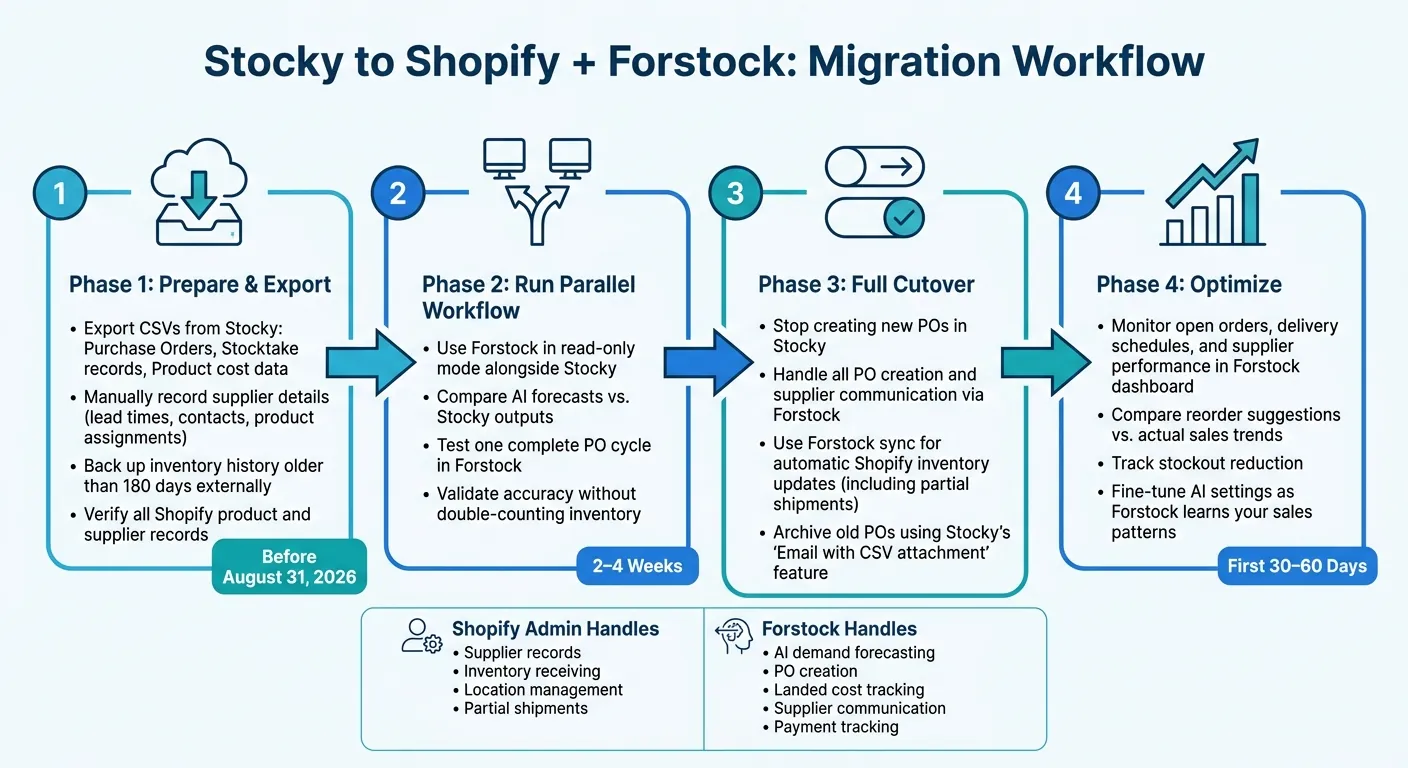
Stocky to Shopify + Forstock Migration: Step-by-Step Workflow
Preparation and Data Export
Start by exporting CSV files for Purchase Orders, Stocktake records, and Product cost data from Stocky. Since supplier details - like contact information, lead times, and product assignments - aren't included in the export, you'll need to manually record these. Make sure this process is completed before Stocky shuts down on August 31, 2026.
"The data export step is where merchants get burned - Stocky's CSV exports are functional but supplier records and old purchase order metadata don't transfer cleanly without manual cleanup. Allocate a full day for manual supplier data cleanup." - Soda Web Media
Keep in mind that Shopify Admin only retains inventory history for 180 days. If you require older data for year-over-year analysis, back it up externally before migrating. After exporting, carefully review and verify your Shopify product and supplier records to ensure all data is accurate and complete. Once this step is finalized, you can begin running a parallel workflow to validate the new system.
Running a Parallel Workflow
Before fully transitioning, operate Forstock alongside Stocky for a period of 2–4 weeks. During this time, use Forstock in read-only mode to compare its AI-driven forecasts with Stocky's outputs. This ensures you can evaluate its accuracy without the risk of double-counting inventory. Additionally, test one complete Purchase Order (PO) cycle in Forstock while continuing to record the transaction in Stocky.
"This announcement certainly isn't a surprise, but there's certain (very specific!) Stocky features that are not Shopify native yet. There's absolutely workflow changes to navigate here, and preparation is essential." - Joseph Brown, Operations Director, Kubix Media
Cutover and Full Implementation
Once the parallel workflow meets your requirements, proceed with the full cutover. Stop creating new POs in Stocky to avoid splitting operations between systems, which could lead to fragmented data. From this point forward, handle all PO creation, supplier communication, and inventory receiving through Forstock and Shopify Admin. Use Forstock's sync settings to automatically update Shopify's inventory, even for partial shipments. To archive old POs in bulk, use Stocky's "Email with CSV attachment" feature to send records to a dedicated folder before the shutdown date.
Post-Migration Optimization
After going live, use Forstock's dashboard to monitor open orders, delivery schedules, and supplier performance. During the first 30–60 days, compare Forstock's reorder suggestions with your actual sales trends. This is a critical period, as Forstock's AI adjusts to your sales patterns and lead times. Pay attention to whether stockouts are decreasing and if the system's suggested order quantities align with your needs.
"Forstock has been great. We're preventing stockouts that were costing us $50K monthly. The AI predictions are incredibly accurate." - Matt, Operations Lead at TechGear
These early checks are essential to ensure your new PO workflow supports smooth operations in Shopify. Over time, as Forstock learns your business patterns, you can fine-tune its settings to match your operational needs more closely.
Conclusion: Setting Up a PO Workflow That Scales
Switching from Stocky gives you the chance to create a purchasing process that grows with your business. This final step ties your migration plan to a purchase order workflow that’s efficient and based on real data.
Shopify Admin covers the essentials like tracking quantities, managing locations, and entering POs manually. However, it doesn’t address key needs like demand forecasting, supplier lead time tracking, or landed cost calculations. That’s where Forstock steps in, bridging these gaps and transforming a scattered manual process into a streamlined, data-driven workflow.
The first priority? Clean and complete supplier data. Before relying on forecasting tools, ensure your supplier records are solid. Once that’s in place, tools for stockout alerts can help your PO workflow grow alongside your business. Accurate details like lead times, minimum order quantities (MOQs), and pack sizes make AI-powered reorder suggestions practical and effective. From there, take it step by step: start with reorder alerts, formalize your PO process, and let the forecasting tools adjust and improve as they learn from your sales trends.
Building a scalable PO workflow takes time, but with Shopify Admin and Forstock working together, you’re starting with a strong base. Keep refining your process as your sales data and supplier performance evolve.
FAQs
What data should I export from Stocky before August 31, 2026?
Stocky will no longer be available after August 31, 2026. To avoid losing critical information, make sure to export all your inventory data beforehand. This includes:
- Supplier records: Keep track of your vendor details.
- Lead times: Ensure you have accurate delivery timelines.
- Case packs: Preserve packaging and quantity information.
- Cost adjustments: Retain any pricing changes or updates.
- Multi-location receiving information: Save data for inventory across different locations.
Backing up this information will simplify your transition to a new system and help maintain seamless inventory management.
How can I avoid stockouts when switching purchase order tools?
To prevent stockouts during the transition, consider these strategies:
- Establish reorder points for each location: Calculate them using this formula: (Daily Sales Velocity × Lead Time) + Safety Stock. This ensures you always have enough inventory on hand.
- Leverage demand forecasting and real-time monitoring: These tools provide instant insights and predictive alerts, helping you stay ahead of potential shortages.
- Automate purchase orders: Automation minimizes errors and ensures that reordering happens on time without manual intervention.
- Export and back up inventory and supplier data: Safeguard your data to ensure the migration process goes smoothly and without disruptions.
How can I track landed costs so my Shopify margins stay accurate?
To get precise Shopify margins, make sure to account for all landed costs in your product cost calculations. This includes expenses like shipping, customs duties, and import fees. One way to simplify this process is by using an inventory management tool. These tools can automatically add these costs to your purchase orders and inventory records, ensuring your cost basis stays accurate.
Additionally, update your inventory values as soon as you receive goods. This allows you to adjust your margins to reflect the full cost of goods sold, keeping your financials accurate and up-to-date.