
Moving Off Stocky: A Step-by-Step Migration Guide for Shopify Merchants
Step-by-step plan to export Stocky data, document suppliers, set up Forstock, run parallel tests, and cut over before Aug 31, 2026.

Moving Off Stocky: A Step-by-Step Migration Guide for Shopify Merchants
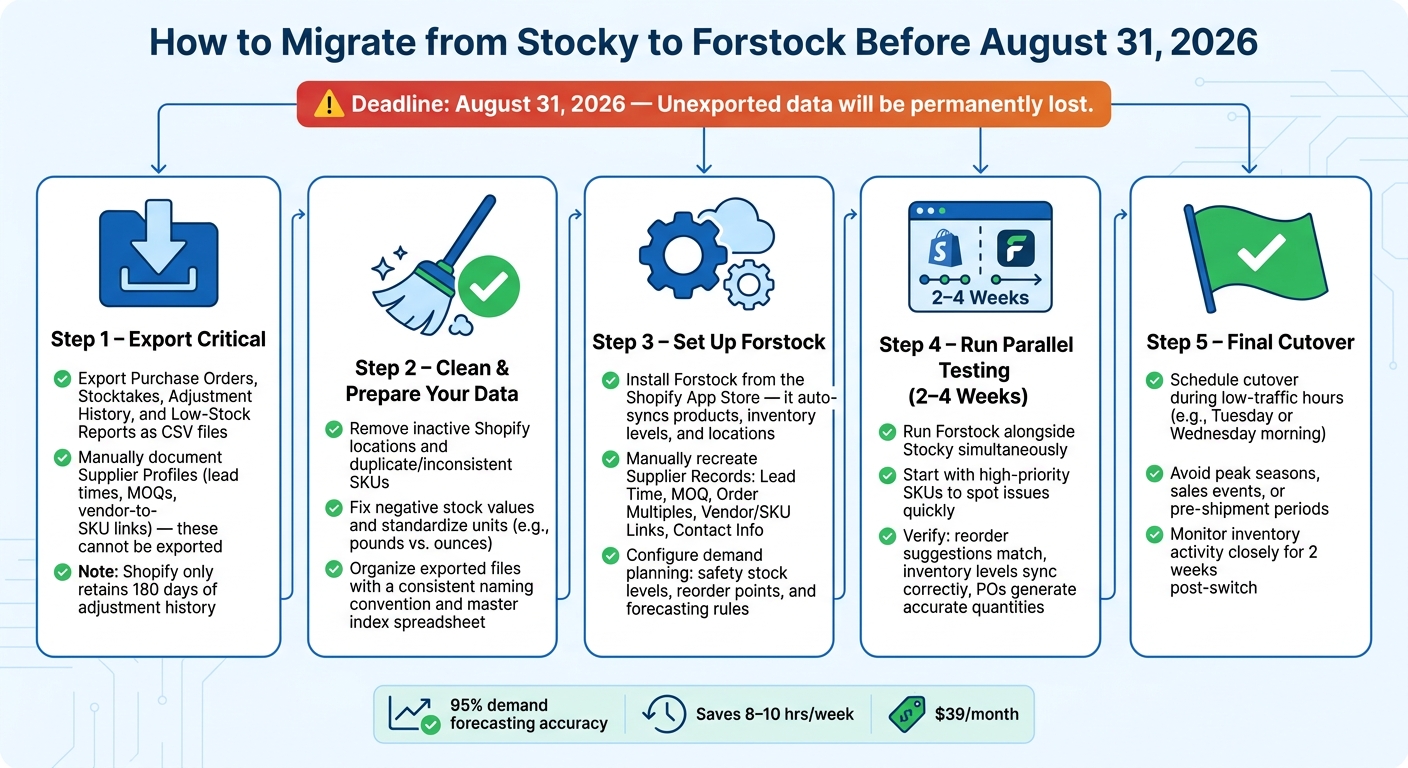
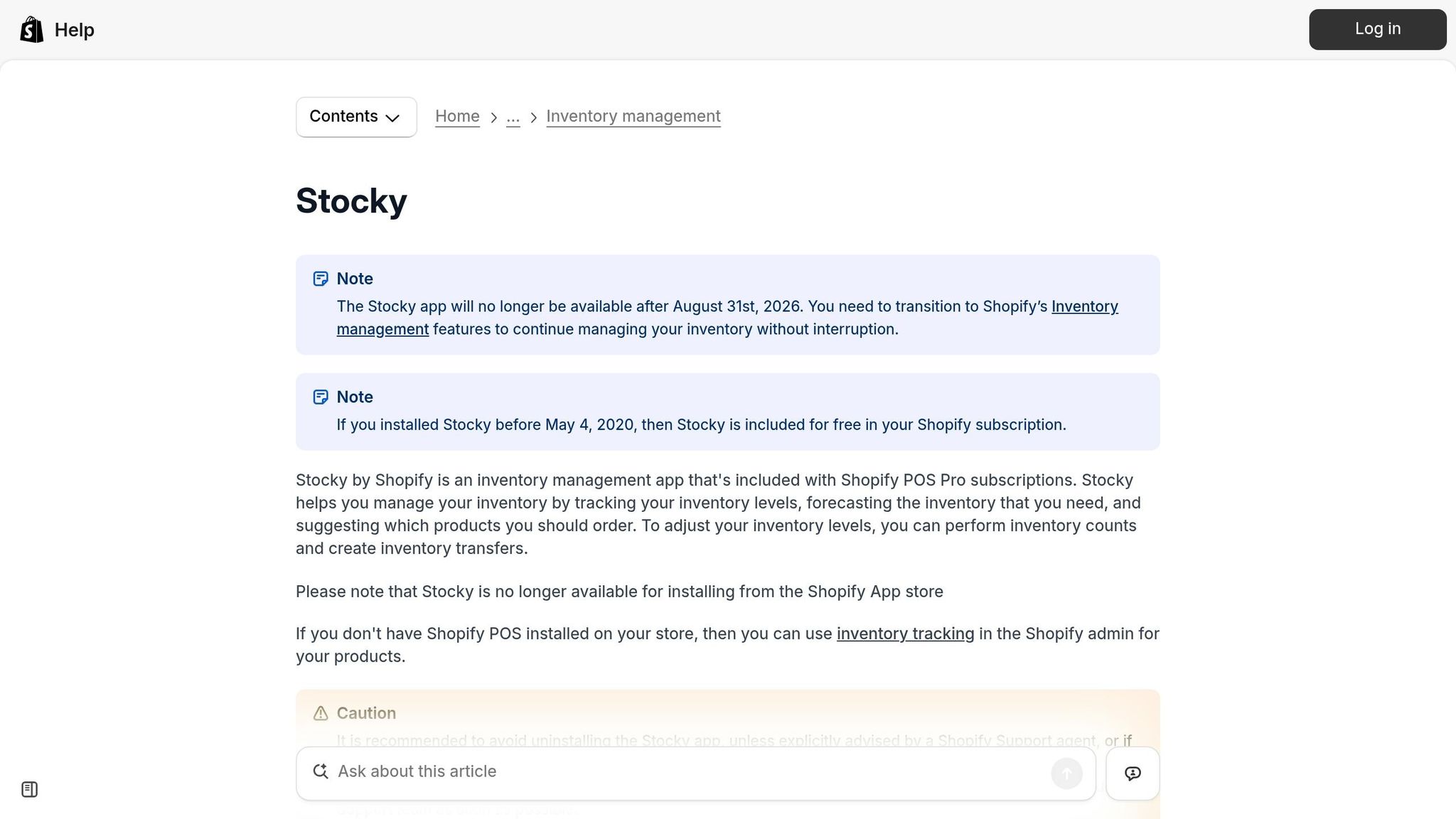
If you rely on Stocky for inventory management, you need to act now. Shopify is shutting down Stocky on August 31, 2026, and any unexported data will be permanently lost. This guide walks you through the process to ensure a smooth transition to a new system, like Forstock, without disrupting your operations.
Key Steps to Migrate Successfully:
- Export Critical Data:
- Save purchase orders, stocktakes, and adjustment history as CSV files.
- Manually document supplier details (lead times, MOQs, vendor-to-SKU links).
- Prepare Your Data:
- Clean up Shopify locations and SKUs.
- Standardize units and fix errors like negative stock values.
- Set Up Your New System:
- Recreate supplier records manually in Forstock.
- Configure demand planning with accurate safety stock and reorder settings.
- Test Before Switching:
- Run Forstock alongside Stocky for 2–4 weeks to identify and fix issues.
- Final Cutover:
- Transition during low-traffic hours and monitor closely for 2 weeks.
Waiting until the last minute could disrupt your inventory operations. Start early to avoid losing data and ensure your team is ready for the change.
Stocky to Forstock Migration: Step-by-Step Guide for Shopify Merchants
How to Migrate from Stocky to Replenish - One CSV, Not a Project
sbb-itb-f0fc809
Preparing Your Stocky Account for Migration
Take the time to carefully review your Stocky account before migrating. A little preparation now can save you a lot of headaches later.
Reviewing Your Current Stocky Setup
Start by identifying the Stocky features your team relies on every day - like purchase orders, stocktakes, replenishment suggestions, and multi-location transfers. These are likely the backbone of your operations. Also, map out user roles within your team: Who reviews reorder suggestions? Who approves purchase orders? Who handles receiving? It’s easy to overlook these roles when you're focused on data, but they’ll need to transition smoothly to your new system.
At the same time, audit your Shopify locations and SKUs. Remove inactive locations and flag any duplicate or inconsistent SKUs. Since most migration tools pull data directly from Shopify Admin (not Stocky), keeping Shopify data accurate is more important than you might think. Also, pause any new workflows in Stocky to avoid introducing changes that could complicate the migration.
Cleaning and Standardizing Your Data
Once you’ve mapped workflows and roles, focus on cleaning up your data. Fix negative stock values, remove duplicate SKUs, and deactivate any unused locations. If your product data includes mixed units - like pounds and ounces for similar SKUs - standardize them now for consistency.
"Every tool you evaluate will work better with clean data." - Stockful
One critical note: Shopify only keeps 180 days of adjustment history. If your business depends on year-over-year patterns, especially for seasonal planning, this limited window won’t cut it. Be sure to export your adjustment logs before the August 31, 2026 deadline.
Backing Up Critical Records
The next step is to back up all your essential records. Note which data can be exported and which must be documented manually. Here’s a quick guide:
| Record Type | Exportable? | Action Required |
|---|---|---|
| Purchase Orders | Yes | Export CSV/PDF history for records |
| Stocktakes | Yes | Export historical count data |
| Inventory Reports | Yes | Export stock-on-hand and low-stock views |
| Supplier Profiles | No | Manually document names and contacts |
| Planning Rules | No | Manually record lead times, MOQs, and multiples |
| Adjustment History | Yes | Export relevant stock adjustment logs |
Supplier records are a notable gap. Shopify has confirmed that supplier data cannot be exported from Stocky. This means you’ll need to manually document key details like contact information, lead times, minimum order quantities (MOQs), order multiples, and vendor-to-SKU relationships. Create a shared spreadsheet for this purpose so your team can easily reference it during the migration process.
"Shopify says suppliers cannot be exported from Stocky. Document supplier names, contacts, lead times, MOQs, and vendor/SKU relationships before the deadline." - Synplex
A migration worksheet can be a lifesaver here. Dedicate one tab to supplier details, another for exported files, and a third for your buying workflows. This consolidated approach will make it easier to validate your data and run migration tests later.
Exporting Data from Stocky
When wrapping up your work in Stocky, it’s critical to export all your essential data before the platform shuts down on August 31, 2026. Shopify has emphasized that any data left unexported will be permanently lost, including key records like supplier information and historical purchase orders.
"Any data you haven't exported will be gone. Shopify has warned that certain data, especially supplier records and historical purchase orders, won't automatically carry over to any replacement system." - Stockful
What Data to Export
To rebuild your Shopify inventory management workflows in Forstock, focus on exporting these five key data types:
| Data Type | Exportable? | Why It Matters |
|---|---|---|
| Purchase Orders | Yes (CSV) | Tracks procurement history and helps analyze unit cost trends. |
| Stocktakes | Yes (CSV) | Maintains audit trails and reconciliation history for inventory management. |
| Adjustment History | Yes (CSV) | Includes details behind stock changes; Shopify only retains 180 days of data. |
| Low-Stock Reports | Yes (CSV) | Offers a foundation for reorder points and safety stock planning. |
| Supplier Records | No – manual | Stores lead times, minimum order quantities (MOQs), and vendor-to-SKU relationships; must be documented manually. |
Pay special attention to adjustment history since Shopify’s tools only retain six months of data. This limitation can hinder your ability to analyze long-term trends, especially if your business relies on seasonal patterns.
How to Export Your Data
Exporting data from Stocky is straightforward, but you’ll need to handle each data type separately:
- Log in to your Stocky dashboard.
- Navigate to the relevant sections (e.g., Purchase Orders, Stocktakes, inventory reports).
- Select Export to CSV for each data type.
- Ensure you download the entire history, not just recent records.
For adjustment history, make sure to export the full date range. Similarly, for low-stock reports, export the specific views your team relies on when making purchase decisions.
Organizing Your Exported Files
To stay organized, use a clear and consistent naming system for your files. For example:
PurchaseOrders_Chicago_06-12-2026.csvStocktakes_AllLocations_06-12-2026.csv
Group your files into folders labeled by data type, such as Purchase Orders, Stocktakes, Adjustment History, and Low-Stock Reports. For supplier records, create a separate folder for your manually documented data.
Additionally, create a master index spreadsheet. This document should list:
- Each exported file.
- Its date range.
- The associated location or SKU group.
This index will be invaluable when uploading data into Forstock and performing validation checks.
Once your files are organized, you’re ready to start building your inventory workflows in Forstock.
Setting Up Inventory Workflows in Forstock
Now that your exported files are organized and supplier data is documented, it’s time to set up your inventory workflows in Forstock. The process is straightforward: start by connecting to Shopify, then add your supplier details, and finally, configure your demand planning rules.
Connecting Forstock to Shopify

Forstock is designed specifically for Shopify, making the connection process seamless. After installing Forstock from the Shopify App Store, the app automatically performs a three-stage sync. This sync pulls in your products, inventory levels, and store locations directly from Shopify - no need to upload CSV files or manual data entry.
Once the sync is complete, test the connection by creating a sample purchase order for a key SKU. Then, verify that inventory levels update correctly. Once everything checks out, you’re ready to move on to building your supplier records.
Recreating Supplier Records
As mentioned earlier, Shopify doesn’t allow supplier records to be exported from Stocky. This means you’ll need to manually input these details into Forstock using your prepared supplier spreadsheet as a reference.
Here’s what you’ll need to enter for each supplier:
| Required Field | Purpose |
|---|---|
| Lead Time | Determines when Forstock triggers reorder recommendations. |
| MOQ (Minimum Order Quantity) | Ensures purchase orders meet the vendor’s minimum requirements. |
| Order Multiples | Makes sure POs are created in proper batch sizes (e.g., packs of 12). |
| Vendor/SKU Links | Links products to their suppliers for accurate replenishment logic. |
| Contact Info | Enables automated delivery of purchase orders to suppliers. |
It’s critical to input accurate lead times and MOQs. Errors here can lead to incorrect reorder suggestions, which could disrupt your inventory management from the start.
Configuring Demand Planning and Purchase Orders
With supplier records in place, the next step is to set up demand planning settings that align with your historical buying patterns. Start by defining safety stock levels for each product. This buffer helps prevent stockouts during unexpected demand surges or supplier delays.
Forstock’s forecasting engine uses data like sales velocity, lead times, and seasonality to generate automated purchase order suggestions. Cross-check these recommendations against your exported low-stock reports to ensure they align with your past purchasing trends. If something seems off, tweak the safety stock or lead time for the specific SKU until the recommendations meet your expectations.
Validating Data and Completing the Migration
With supplier records and demand planning in place, it’s crucial to ensure everything functions properly before fully migrating to the new system.
Running a Parallel Testing Period
Before making the switch, run Forstock alongside Stocky for 2–4 weeks. This side-by-side comparison helps identify any inconsistencies. For example, do Forstock's reorder suggestions match what Stocky would recommend for your top-selling SKUs? Are inventory levels syncing correctly after each transaction? Are purchase orders being generated with accurate quantities?
Instead of testing your entire catalog at once, start with a smaller group of high-priority SKUs. This approach makes it easier to spot and resolve any issues quickly.
"One of the biggest mistakes merchants make during inventory transitions is moving everything at the same time." - Sumtracker
Once you’re confident in the system’s accuracy, move on to the final data checks.
Final Data Checks
Before retiring Stocky, use this checklist to ensure a smooth transition:
| Checklist Item | What to Verify |
|---|---|
| Supplier Records | Check that lead times, minimum order quantities (MOQs), and contact details are correct in Forstock. |
| Open Purchase Orders | Confirm that all pending purchase orders have been recreated or transferred to Forstock. |
| Inventory Accuracy | Ensure Shopify Admin stock levels match Forstock’s data - avoid negative stock or duplicate SKUs. |
| Historical Archive | Export Stocky purchase order and stocktake history (e.g., as CSV or PDF) before August 31, 2026. |
| Workflow Validation | Test receiving processes to verify that unit costs and quantities update correctly. |
Keep in mind that some Shopify workflows may update quantities without adjusting unit costs. Double-check that Forstock updates costs automatically to maintain accurate margins.
Once everything checks out, you’re ready to proceed with the final switch.
Executing the Cutover
After completing parallel testing and final data checks, you can confidently initiate the system cutover. Choose a low-traffic time, like a Tuesday or Wednesday morning, to minimize disruptions. Avoid switching during sales events, peak seasons, or just before a major shipment.
On the day of the cutover, finalize any remaining data transfers and confirm that Forstock is now your single source of truth for inventory. Make sure all team members involved in buying, receiving, or reporting are familiar with the new system. After the switch, closely monitor inventory activity for the first two weeks. Watch for unexpected stock adjustments, missed sales deductions, or sync delays to address any issues promptly.
Conclusion: Next Steps After Leaving Stocky
Transitioning away from Stocky requires a structured process: export, clean, rebuild, configure, test, and cut over. Skipping steps - especially data cleanup and parallel testing - can cause major disruptions to your inventory operations. Following this sequence ensures a smooth transition with minimal risk.
The deadline is firm: August 31, 2026. After this date, Stocky will no longer function, and any unexported data will be permanently lost. If purchasing and replenishment are part of your routine, waiting until the last minute could jeopardize your business.
Time is of the essence. Supplier records and operational workflows take longer to rebuild than product data, making early action essential.
Forstock is designed to seamlessly replace Stocky. With features like demand-based replenishment boasting 95% accuracy, automated purchase orders, centralized supplier management, and real-time visibility across multiple locations, it offers a robust solution. Merchants who have already switched report saving 8–10 hours per week on manual inventory tasks. At just $79/month, it’s a practical upgrade for any Shopify business evaluating cloud inventory tools for reliable management.
The steps outlined in this guide - exporting data, rebuilding supplier records, running tests, and executing a clean cutover - set you up for stable and scalable inventory operations post-Stocky. Start leveraging your new system now to optimize efficiency and keep your business running smoothly.
FAQs
What’s the fastest way to export everything I’ll need before August 31, 2026?
To get everything out efficiently, prioritize the essentials: purchase orders, stocktakes, and supplier details. Export purchase orders and stocktake records as CSV files directly from Stocky. For supplier information, manually record key details like contact information and lead times. Don’t forget to save inventory reports, such as ABC analysis, and organize all files so they’re ready for a smooth import into your new system. Starting early will help make sure you don’t overlook anything before the shutdown.
How do I rebuild supplier info if Stocky won’t export suppliers?
With Stocky scheduled to shut down on August 31, 2026, it’s crucial to manually record all supplier information to avoid disruptions. Since Stocky doesn’t support supplier exports, you’ll need to create a detailed spreadsheet to capture this data.
Here’s what your spreadsheet should include:
- Supplier Name: The name of each supplier.
- Contact Information: Phone numbers, email addresses, or other ways to reach them.
- Lead Time: How long it takes for orders to be delivered.
- Payment Terms: Agreed-upon payment conditions, such as Net 30 or Net 60.
- MOQ (Minimum Order Quantity): The smallest quantity a supplier will accept for an order.
- Assigned SKUs: The specific stock-keeping units linked to each supplier.
To gather this information, review your purchase orders and stocktake records. Once your spreadsheet is complete, transfer the data into your new inventory system. This step ensures you maintain smooth demand planning and reorder processes after the transition.
What should I check during the 2–4 week parallel test to avoid inventory mistakes?
During the 2–4 week parallel testing phase, carefully examine your exported data for any errors or missing information. Make sure that purchase orders, stocktakes, and inventory reports are thorough and accurate. Run through critical workflows, such as creating and receiving purchase orders, and double-check supplier details, lead times, and demand forecasts. Also, compare reorder suggestions from Forstock and Stocky to ensure the inventory management processes are aligned. This step is crucial for ensuring everything runs smoothly before Stocky is discontinued.
Keep reading
Try Forstock free for 14 days.
AI-powered demand forecasting and reorder automation for Shopify brands. No credit card required.