
How to Rebuild Your Stocky Supplier Data Before the Shutdown
By Forstock Team · Last updated June 11, 2026
Extract and standardize supplier names, lead times, MOQs, payment terms and PO history before your inventory app shuts down.
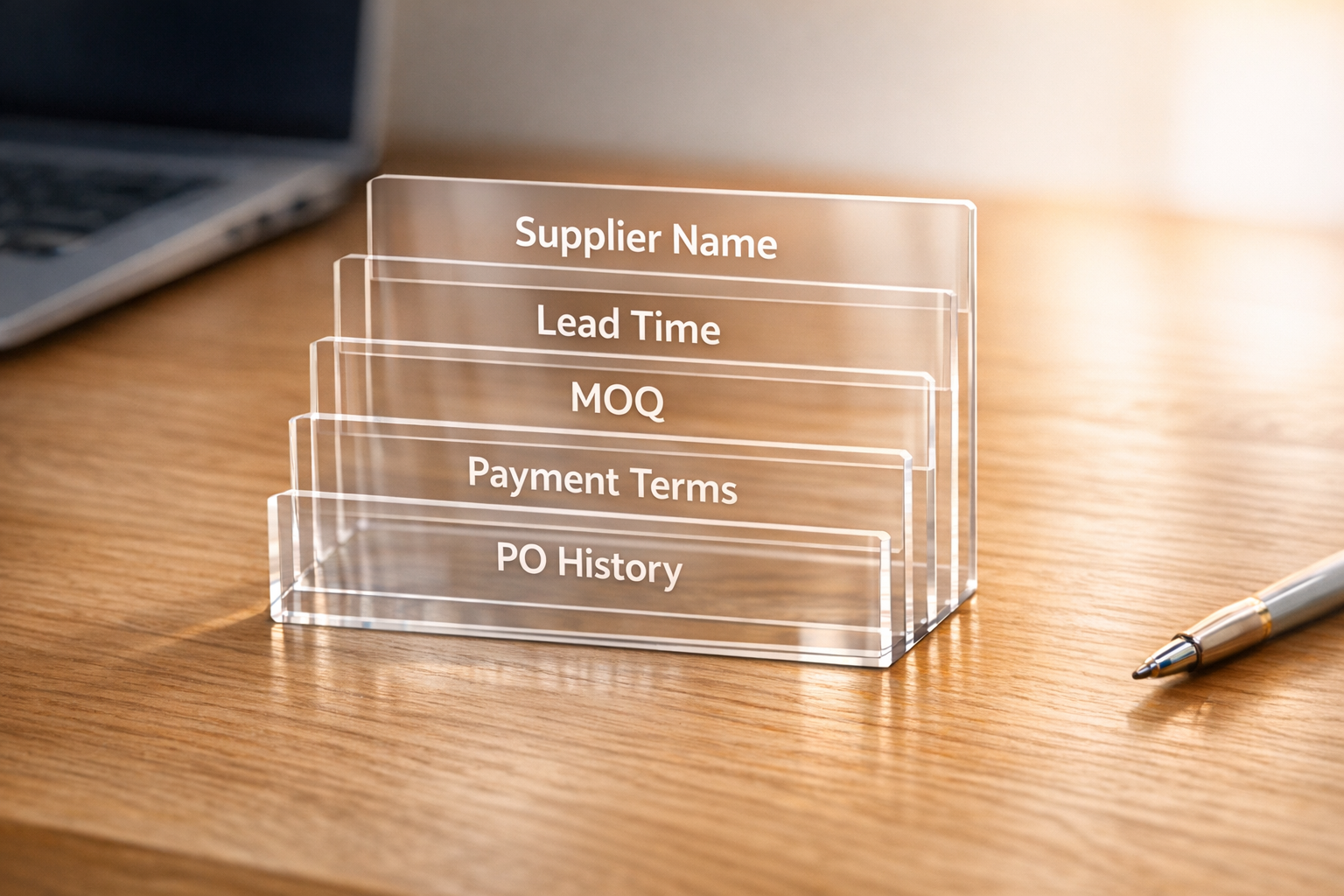
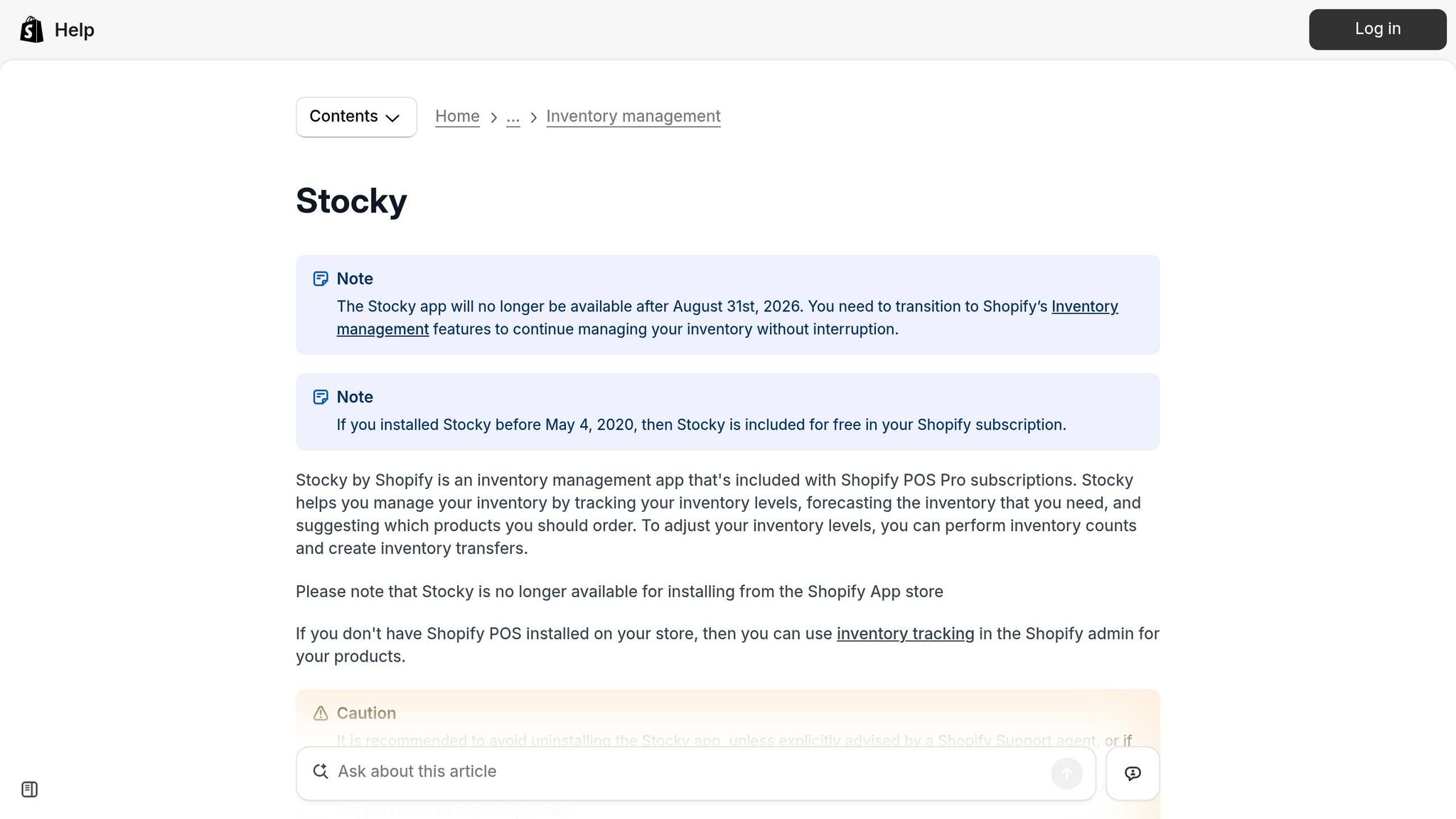
Stocky is shutting down on August 31, 2026, and your supplier data will be permanently lost if you don't act now. Here's what you need to know and do immediately:
- Key Deadline: After August 31, 2026, Shopify will no longer support Stocky, and no data recovery will be possible.
- Manual Data Collection: Supplier details like names, lead times, MOQs, and payment terms cannot be exported automatically - you must record them manually.
- Time Required: Migrating your data can take 8–12 weeks, so start now to avoid last-minute issues.
- Essential Fields to Gather:
- Supplier identity (name, contact info)
- Lead times and MOQs
- Payment terms and preferred currency
- Vendor-to-SKU mappings
To protect your business, create a spreadsheet to centralize this information, verify its accuracy, and prepare for migration to a new system, like Forstock. Don't wait - delaying could lead to disrupted purchasing processes and financial errors.
Stocky Alternatives for Shopify: What to Choose Next
sbb-itb-f0fc809
What Supplier Data You Need to Rebuild
Stocky stores supplier data exclusively within the app, and this information will disappear after August 31, 2026. Unfortunately, there's no export feature, so you'll need to manually copy each field.
Key Supplier Fields to Collect
To prepare, gather these six essential categories of supplier data:
- Supplier identity: Include the business name, contact details (such as name, email, phone number, and address).
- Lead times: Track the number of days between placing an order and receiving delivery.
- MOQs and case pack sizes: Record the minimum order quantities (in dollars or units) required by suppliers, as well as the pack sizes they ship in (e.g., cases of 12 units).
- Payment terms: Note standard agreements like Net 30 or Net 60, which define when payments are due.
- Preferred currency: Identify the currency suppliers use for invoicing, especially for international transactions.
- Vendor-to-SKU mapping: Map each product to its corresponding supplier.
Why Each Field Matters
Each of these fields plays a crucial role in managing your purchasing process. For instance, lead times are critical for accurate reorder planning. Without precise lead time data, you risk either running out of stock or over-ordering. As Canopy Inventory explains: "Every incorrect cost price or outdated lead time that makes it into your new system will generate wrong reorder suggestions."
MOQs and case pack sizes are equally important to ensure purchase orders meet supplier requirements. If a PO doesn’t align with a supplier's minimums or shipping units, it could result in rejected orders and delays. Meanwhile, payment terms directly affect cash flow, making consistency essential for managing accounts payable.
A key limitation to note: Shopify’s native admin doesn’t save payment terms or preferred currencies as defaults in supplier profiles. This means these details must be manually entered for every purchase order. Your reference spreadsheet, therefore, will not only help with migration but also serve as an indispensable resource for daily operations.
| Supplier Data Field | Operational Impact If Missing |
|---|---|
| Lead Times | Poor reorder timing leads to stockouts or overstock |
| MOQs & Case Pack Sizes | Rejected POs due to unmet supplier requirements |
| Payment Terms | Inconsistent financial records and accounts payable errors |
| Preferred Currency | Incorrect cost calculations for international orders |
| Vendor/SKU Mapping | Errors in generating purchase orders |
| Contact Details | No way to communicate with suppliers about orders |
Use this table as your checklist. Any missing field represents a gap you’ll need to address before the August 31 deadline. Up next, we’ll cover how to retrieve this data from Stocky and create a temporary master record using a spreadsheet.
How to Pull Supplier Data from Stocky Manually
How to Migrate Your Stocky Supplier Data Before the August 31, 2026 Shutdown
To manually gather supplier information from Stocky, you’ll need to copy details like supplier names, contact information, currencies, payment terms, and product mappings into a spreadsheet. Additionally, extracting your purchase order (PO) history from Stocky is a critical step. Below, you’ll find a detailed workflow to guide you through the process.
"Supplier details are not exportable from Stocky and must be captured manually."
Using a Spreadsheet as a Temporary Master Record
Start by creating a spreadsheet to act as a central record for all supplier data. Each row should represent one supplier, with columns for essential details such as:
- Supplier Name
- Contact Email
- Phone
- Currency
- Payment Terms
- Lead Time (Days)
- MOQ (Minimum Order Quantity)
- Order Multiples
- SKU/Product Name
- Unit Cost
- Notes
This temporary document will serve as your main reference while rebuilding supplier records. Use this opportunity to clean up outdated or irrelevant data. For example, during their migration in early 2026, Bailey & Coco discovered that only 6 of their 23 suppliers were still active. They also found that Stocky’s cost data had been underestimating purchase costs by an average of 12%, equating to about $10,800 per container shipment. This process not only streamlines your supplier list but also helps you avoid costly errors during the transition.
Getting Data from Purchase Orders and Records
Leverage your exported PO CSV to calculate lead times by comparing order dates with receipt dates. Use this data to confirm payment terms and unit costs against recent invoices. Additionally, download PDF copies of historical purchase orders and stocktake records from Stocky to ensure you have a reliable backup.
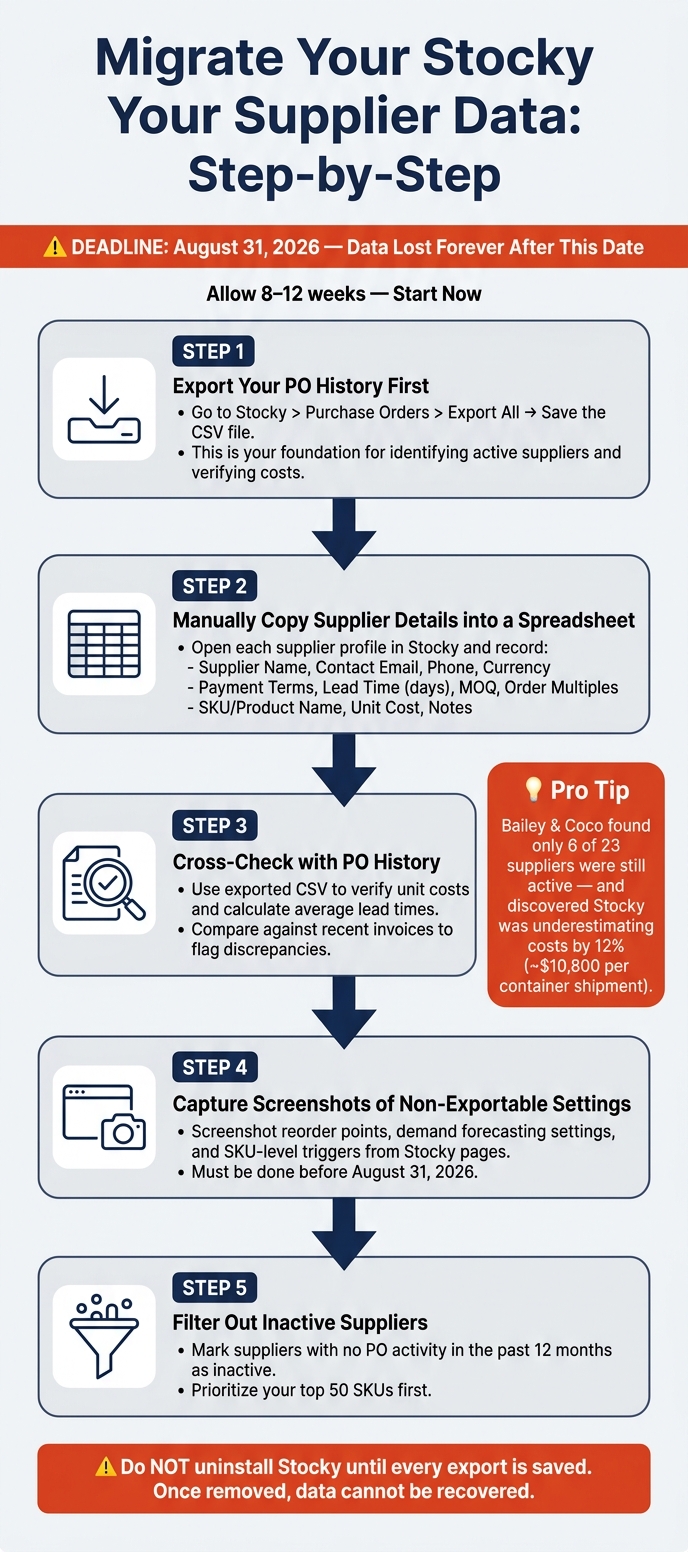
Step-by-Step Workflow for Collecting Supplier Data
-
Export your PO history first
Navigate to Stocky > Purchase Orders > Export All and save the CSV file. This file will be your foundation for identifying active suppliers and verifying costs. -
Manually copy supplier details into your spreadsheet
Open each supplier’s profile in Stocky and transfer key information - like names, contact details, currencies, payment terms, lead times, and MOQs - into your spreadsheet. -
Cross-check with PO history
Use the exported CSV to verify unit costs and calculate average lead times. Compare these findings with recent invoices to flag any discrepancies. -
Capture screenshots of non-exportable settings
For details not included in the CSV export, such as reorder points, demand forecasting, and SKU-level triggers, take screenshots of the relevant Stocky pages. Be sure to complete this step before August 31, 2026. -
Filter out inactive suppliers
Identify suppliers with no PO activity in the past 12 months and mark them as inactive. This ensures your rebuilt records remain accurate and relevant.
"This is non-negotiable - once Stocky is removed from your store, this data is gone permanently. There is no recovery option and Shopify has confirmed they will not provide post-shutdown data exports." - Canopy Inventory
Focus on gathering data for your top 50 SKUs first to safeguard your most critical inventory items. Once this is done, proceed systematically with the rest of your inventory. After collecting all necessary information, the next step is organizing and structuring the data for seamless integration.
How to Organize and Structure Your Supplier Data
Once you've gathered your supplier data, the next step is to organize it for a smooth migration. This means turning raw, disorganized information into a clean, structured format that's ready for action.
Formatting Your Data for Easy Use
The key here is consistency. Every field in your spreadsheet should follow a uniform format to ensure the data is easy to read, sort, and import. For example:
- Use the MM/DD/YYYY format for dates to keep lead time tracking consistent.
- Format costs as USD $X,XXX.XX for clear financial reporting.
- Lead times should be entered as whole numbers, avoiding ranges like "30–45 days." Instead, base lead time values on recent supplier performance.
Here’s a quick reference table to help you standardize your key fields:
| Data Field | Standardized Format | Purpose |
|---|---|---|
| Date | MM/DD/YYYY | Consistent lead time tracking |
| Currency | USD $X,XXX.XX | Uniform financial reporting |
| SKU | BR-1234-01 | Unique identification across locations |
| Payment Terms | Net 30, Net 60 | Simplifies accounting processes |
| Lead Time | Whole numbers (e.g., 30) | Accurate reorder point calculation |
This is also the perfect time to audit your data. Remove inactive suppliers, archive discontinued SKUs, and double-check that cost prices match recent invoices. A great example of why this matters comes from Bailey & Coco's migration from Stocky in early 2026. During their 10-week project, they spent two weeks cleaning their data, which led to significant discoveries: they removed 17 inactive suppliers, archived 340 discontinued SKUs, and uncovered that Stocky had been underestimating costs by 12%. That error alone had caused them to under-budget by about $10,800 per container shipment.
"Migration is not just about moving data. It is about discovering how inaccurate your current data has become." - Canopy
With your data standardized and cleaned up, you're ready to move on to entering it into Forstock's system.
Adding Your Data to Forstock's Supplier Module
Now that your data is clean and properly formatted, it's time to transfer it into Forstock. Each supplier should be entered as its own record, with every SKU mapped to the corresponding vendor. Be sure to include critical details like lead times, minimum order quantities (MOQs), order multiples, and unit costs. These details are crucial for accurate reorder suggestions, so take your time to get them right.
Keep your spreadsheet open as you work to make cross-checking easier and reduce errors. As you complete each supplier record in Forstock, mark it as done in your spreadsheet. This way, you can track your progress and ensure nothing gets missed.
How to Review and Confirm Your Supplier Data
Making sure your supplier data is accurate is crucial for a smooth transition from Stocky to Forstock. This step helps avoid future ordering mistakes. Before Stocky officially shuts down, take the time to double-check your Forstock records for accuracy and completeness.
Data Accuracy Checklist
The best way to verify your data is by comparing it side-by-side with Stocky while it’s still active. This allows you to spot and fix discrepancies more easily. Each supplier record should be carefully reviewed to ensure every field is accurate.
Here’s what to look for:
| Verification Step | What to Check | Why It Matters |
|---|---|---|
| Field Completeness | Contact email, currency, payment terms | Ensures purchase orders can be created and sent without needing manual fixes. |
| Lead Time Accuracy | Compare documented lead times with actual delivery dates from your last 3 POs | Prevents overstock and stockouts caused by unrealistic delivery expectations. |
| SKU Mapping | Verify each SKU is linked to the correct primary supplier | Prevents errors like ordering from the wrong vendor. |
| Cost Prices | Cross-check against your most recent invoices | Identifies price increases that Stocky may not have updated. |
| Workflow Test | Create a test purchase order in Forstock, download the PDF, and run a partial receipt | Confirms the entire purchasing process works as expected. |
It’s important not to rely solely on Stocky’s initial lead times. Instead, use historical purchase order data to identify actual delivery times. Mismatches between expected and real lead times can lead to stock shortages.
To ensure everything is functioning properly, run a test purchase order. This will help you confirm that supplier mapping and cost details are accurate.
Once you’ve verified all the data, you can move forward with securing and finalizing your records.
Locking Down Your Data Before the Deadline
Stocky’s APIs will stop working on August 31, 2026. After that date, any custom scripts or tools that rely on Stocky will no longer function.
"Do not uninstall Stocky until every export you need is complete and saved outside the app. Once it's gone, you can't bring it back." - kijun.app
Plan to lock down your data two to three weeks before the August 31 deadline. This buffer period allows time to fix errors, train your team, and avoid last-minute scrambling. As ReplenishRadar warns, "If you have not started your migration by June 2026, you are going to be doing it under time pressure in July or August."
After your final review, save a master spreadsheet of your supplier data to a secure shared drive. This will serve as a permanent reference since Shopify will not carry over historical Stocky data.
Conclusion: Next Steps Before August 31
August 31, 2026 is your final deadline - after this date, Stocky data will be permanently lost.
At this point, you've pinpointed the standardized supplier terms, pulled and organized your data from Stocky, and double-checked everything in Forstock. These actions lay the groundwork for a smooth transition.
"The Stocky shutdown date is 31 August 2026. That sounds like plenty of time. It is not." - Canopy
Don't wait. Start your migration now. The longer you delay, the less time you'll have to identify and fix errors before they disrupt actual purchase orders.
FAQs
What should I do first if I only have a few weeks left?
If time is running out, prioritize swift action to safeguard essential data. Begin by creating a master spreadsheet to manually record key supplier details, including names, contact information, lead times, payment terms, and minimum order quantities (MOQs). After that, export your purchase order history and inventory records as CSV files. These files are indispensable for accounting purposes and audits, and access to them will no longer be available after August 31, 2026.
How can I estimate lead times if my records are inconsistent?
To figure out lead times, take a look at your exported Stocky Purchase Order CSV files. Check the time span between when each order was placed and when it was received. These past records will give you precise data to update your new supplier spreadsheet. Going forward, make sure to keep tracking lead times in your spreadsheet or use an external tool. This will help you plan reorders more effectively.
What’s the best way to avoid cost and payment term mistakes during migration?
Before starting the migration process, it’s crucial to audit your data to avoid errors with costs and payment terms. Begin by cross-checking cost prices in Stocky with recent physical invoices - outdated records can lead to inaccuracies. To stay organized, set up a master supplier spreadsheet that keeps track of payment terms and currency settings across the board. Additionally, clean up your data by removing inactive suppliers and archiving discontinued SKUs. This ensures that only current and accurate information moves forward.
Keep reading
Try Forstock free for 14 days.
AI-powered demand forecasting and reorder automation for Shopify brands. No credit card required.