
Shopify Reorder Point Formula: How to Know Exactly When to Reorder Inventory
By Forstock Team · Last updated June 6, 2026
Calculate reorder points using average daily sales, lead time, and safety stock, plus tips to set and automate thresholds in Shopify.
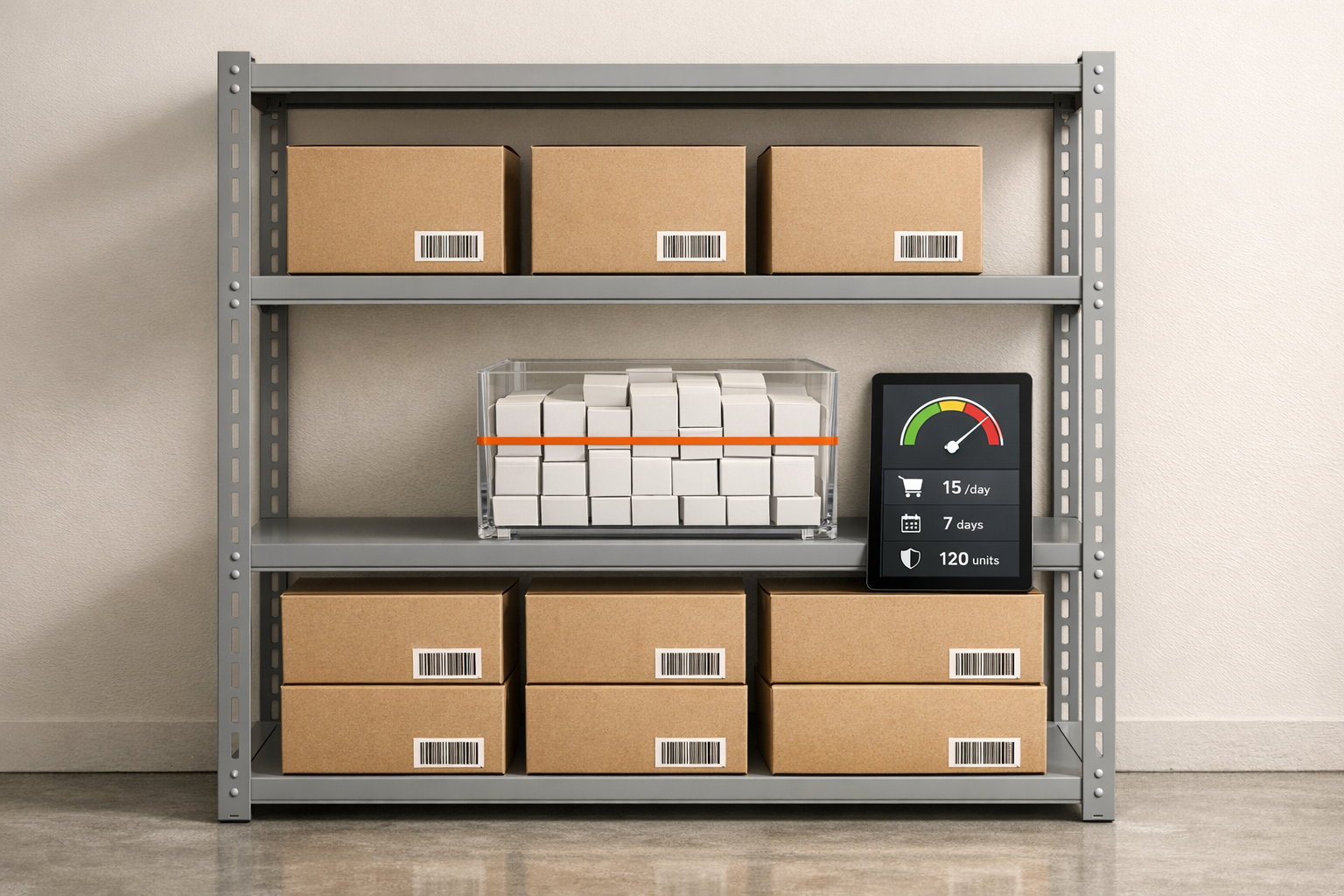
Managing inventory for a Shopify store can be tricky, but a reorder point (ROP) simplifies the process. It tells you when to restock so you avoid stockouts and overstocking. The formula is straightforward:
Reorder Point = (Average Daily Sales × Lead Time) + Safety Stock
Here’s how it works:
- Average Daily Sales: How many units you sell daily (calculated over 60–90 days).
- Lead Time: Days your supplier takes to deliver new stock.
- Safety Stock: Backup inventory to cover unexpected demand or delays.
For example, if you sell 8 units/day, your supplier takes 14 days, and you keep 24 units as safety stock, your reorder point is 136 units.
Why It Matters:
- Stockouts: Losing sales and hurting customer trust.
- Overstocking: Tying up cash in unsold inventory.
Pro Tips:
- Use Shopify reports to calculate sales accurately (exclude out-of-stock days).
- Track actual supplier lead times, not just their estimates.
- Update reorder points every 90 days to reflect changing sales trends.
For automation, tools like Forstock sync with Shopify to calculate and manage reorder points dynamically.
How to Calculate Inventory Reorder Points and Safety Stock Values
sbb-itb-f0fc809
The Reorder Point Formula, Explained
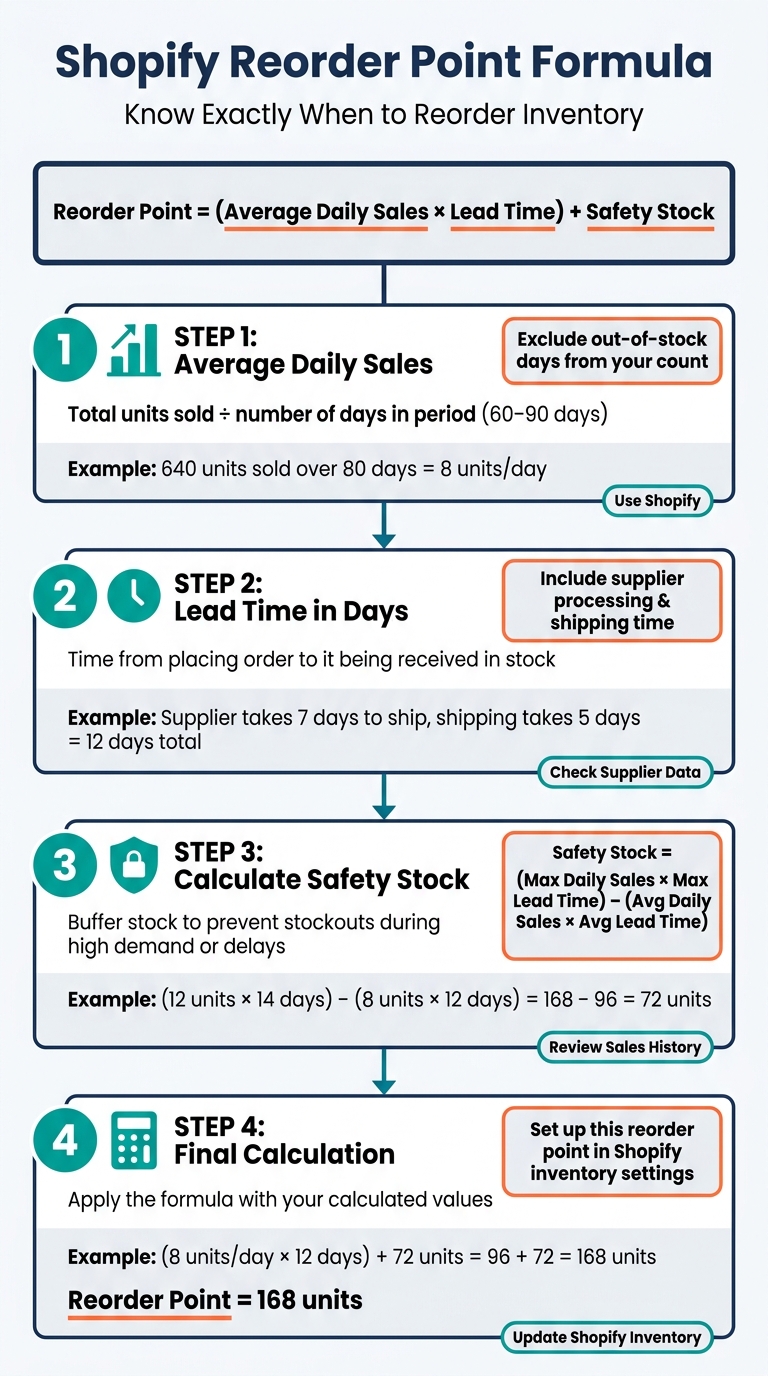
Shopify Reorder Point Formula: Step-by-Step Calculation Guide
The Formula: Reorder Point = (Average Daily Sales × Lead Time) + Safety Stock
The reorder point formula has two key components. The first part - Average Daily Sales × Lead Time - calculates the inventory you'll need to cover sales while waiting for your next shipment. The second part, Safety Stock, acts as a safety net, protecting you from unexpected demand spikes or supplier delays. Adding these together gives you the inventory level that signals it’s time to reorder.
"A reorder point is a trigger - not a 'we're out of stock' alarm. It's the moment you should place an order, accounting for the fact that your supplier needs time to fulfill it." - Alertr Team
Think of it like a low-fuel alert in your car. It’s a heads-up to refuel before running out entirely.
The 3 Key Inputs: Average Daily Sales, Lead Time, and Safety Stock
Each part of the formula plays a critical role:
- Average Daily Sales: This is how many units you sell daily, usually calculated over 60–90 days. Be sure to exclude out-of-stock days to avoid underestimating demand.
- Lead Time: The number of days it takes from placing an order to having stock ready to sell. This includes supplier processing, manufacturing, transit, and receiving time. If your supplier promises 10 days but deliveries often take 14, use 14 days in your calculation.
- Safety Stock: This is your backup inventory. It covers unexpected situations like a product going viral or delays in supplier shipments.
Here’s how it looks in action:
| Input | Value | Calculation Step |
|---|---|---|
| Average Daily Sales | 8 units/day | - |
| Supplier Lead Time | 14 days | 8 × 14 = 112 units (Lead Time Demand) |
| Safety Stock | 24 units | - |
| Reorder Point | 136 units | 112 + 24 = 136 |
In this example, you’d reorder inventory when your stock hits 136 units. Waiting until you’re nearly out of stock could leave you with gaps in availability.
Reorder Point vs. Minimum Stock vs. Safety Stock
These terms are often confused, leading to mistakes like late orders or overstocking. Here’s a simple breakdown:
| Term | What It Is | Its Role |
|---|---|---|
| Safety Stock | A calculated buffer at the bottom of your inventory | Protects against demand or supply issues |
| Reorder Point | The inventory level that prompts a new order | = Lead Time Demand + Safety Stock |
| Minimum Stock | The lowest acceptable inventory level | Often the same as safety stock in practice |
The main takeaway? Safety stock is part of your reorder point. Your reorder point sits above safety stock by the exact amount you expect to sell during lead time. When your new shipment arrives, safety stock should still be on your shelves.
"Safety stock is often misunderstood as 'extra inventory you waste money on.' It is not - it is insurance against two specific risks: demand variability and supply variability." - EZstock
Mixing up these terms can lead to costly inventory errors, especially for Shopify merchants.
Next, we’ll dive into how to calculate these inputs using your Shopify sales data.
How to Calculate Reorder Point Inputs Using Shopify Data

How to Calculate Average Daily Sales
To determine average daily sales, use Shopify's "Sales by Product" report for a 60–90 day period. Divide the total units sold by the number of days. Alternatively, you can rely on the 28-day rolling "Quantity sold per day" metric from the "Inventory remaining per product" report.
Be sure to exclude any days when the product was out of stock. For instance, if a product was unavailable for 10 out of 90 days, divide the total units sold by 80 instead of 90. Ignoring this adjustment can lead to underestimating demand, which could result in a lower reorder point and potential stockouts.
"Taking 'inventory on hand' from Shopify and dividing by days to estimate daily demand is wrong - as inventory falls without sales, it produces artificially low demand figures." - Synplex
How to Determine Supplier Lead Time
Shopify's Admin panel doesn’t automatically track supplier lead times, though some Shopify purchase order apps offer this feature. To calculate this, manually record the date you submit each purchase order and the date the inventory becomes "Available" in Shopify. The time between these two dates is your actual lead time.
Lead time includes several stages: order processing, manufacturing, shipping, and receiving. Don’t forget to add a 2–3 day buffer for receiving and shelving inventory - skipping this step can cause your reorder point to fall short.
To get an accurate average, use data from at least 6–12 months of purchase orders. Focus on actual delivery times rather than supplier estimates. For example, if a supplier claims a 10-day lead time but consistently delivers in 14 days, base your reorder point on the 14-day figure. Also, track the longest delivery time you’ve experienced - this "max lead time" is critical for calculating safety stock.
| Lead Time Component | What It Covers |
|---|---|
| Order Processing | Time from submitting the purchase order to supplier confirmation |
| Manufacturing | Time taken by the supplier to produce or pick the goods |
| Shipping/Transit | Time spent in transit via air, sea, or ground freight |
| Receiving/Shelving | Time your team spends unpacking, counting, and updating Shopify |
How to Calculate Safety Stock
For products with steady demand, use the formula (Max Daily Sales − Average Daily Sales) × Lead Time to calculate safety stock. If demand fluctuates, use Z-score × Standard Deviation of Daily Sales × √Lead Time. For cases where data is limited, set safety stock at 20–50% of lead-time demand. A Z-score of 1.65 is commonly used for a 95% service level, which is standard for many growing direct-to-consumer (DTC) brands.
To simplify the process, prioritize your SKUs. Apply the statistical formula to your top-performing "A" items and use the simpler multiplier method for lower-priority products. This approach balances accuracy with efficiency, focusing on the products that impact your revenue the most.
Once these inputs are calculated, you can confidently set and manage reorder points in Shopify Admin.
How to Set Up Reorder Points in Shopify
Which SKUs to Prioritize First
Focus on the top 20% of your revenue-driving products - these are the SKUs where running out of stock can hit the hardest, both in terms of lost sales and customer trust. Studies show that 43% of customers faced with an out-of-stock situation will turn to a competitor instead of waiting for a restock.
Start by ranking your SKUs based on total revenue from the last 90 days. Then, sort them by Days of Stock Remaining (calculated as current stock ÷ daily sales velocity). This helps you identify which products are most at risk of running out. Combining revenue rank with urgency gives you a clear roadmap for prioritization. Aim for service levels of 95–99% for A-items, 90–95% for B-items, and 85–90% for C-items. This approach ensures your high-priority products are always available. Once prioritized, you can integrate these reorder points into Shopify Admin to streamline restocking.
Where to Store Reorder Points in Shopify Admin
Shopify Admin doesn't have a built-in "Reorder Point" field. While the "Low stock threshold" feature exists, it’s static and doesn't account for variables like lead time or safety stock. Think of it as a basic starting point rather than a complete solution.
For more dynamic tracking, use Shopify Flow to automate alerts when stock levels drop below your reorder point. Flow can notify your team, send emails, or even initiate workflows for critical SKUs. However, for stores with extensive catalogs, a dedicated inventory management app is often more effective. These apps allow you to store and calculate formula inputs - such as average daily sales, lead time, and safety stock - all in one place. Once your reorder points are stored, the next step is to keep a close eye on stock levels.
How to Monitor Stock Against Reorder Points
Setting reorder points is just the beginning; consistent monitoring is what ensures the system works. With Shopify Flow (available on Shopify, Advanced, and Plus plans), you can automate actions like sending emails, creating draft purchase orders, or notifying your team via Slack whenever inventory falls below your set thresholds.
For multi-location stores, it’s important to establish separate thresholds for each location. This helps avoid overstocking at one site while running low at another. If you're managing inventory across multiple locations, either create separate Flow automations or use an app designed to handle location-specific logic. To keep your reorder points accurate, recalculate thresholds every 90 days to reflect changes in sales trends and supplier performance.
How Forstock Automates Reorder Point Management for Shopify
Forstock takes the guesswork out of managing reorder points by automating calculations, keeping your Shopify inventory in check without manual effort.
How Forstock Connects with Shopify
Forstock syncs directly with Shopify, pulling in real-time sales data, inventory levels, and order history. This eliminates tedious manual data entry and ensures you always have an accurate snapshot of what’s selling, how quickly, and where.
But it doesn’t stop there. Forstock goes a step further by reconciling data from Shopify POS, online orders, and returns. This process eliminates phantom stock - those misleading inventory counts that look good on paper but don’t match what’s on your shelves. By cleaning up your data, Forstock lays a solid foundation for accurate reorder point calculations and smooth automation.
Automating Calculations and Purchase Orders with Forstock
Once connected to Shopify, Forstock uses AI to continuously calculate reorder points. It factors in key sales metrics and lead times, updating these numbers as conditions change. This means you’re not stuck relying on outdated thresholds.
When inventory dips below the set threshold, Forstock automatically generates a purchase order and sends it to your supplier. This streamlined process helps prevent stockouts and delays, keeping your shelves replenished right on time.
Keeping Reorder Points Up to Date with Forstock
Sales trends are always shifting - a reorder point that worked in February might leave you scrambling during the holiday rush. Forstock adapts to these changes, recalculating reorder points to align with current demand instead of outdated projections.
The platform also offers a 12-month demand forecast and a dashboard that tracks stock levels across all locations. If one warehouse has excess inventory, Forstock flags it as a transfer opportunity, helping you cut down on unnecessary purchases. For your most critical products (like high-revenue Category A SKUs), Forstock even lets you automatically adjust reorder points and safety stock to ensure you’re always prepared.
Common Reorder Point Mistakes and How to Avoid Them
Mistakes in managing reorder points can disrupt even the most well-planned inventory strategies. Missteps like relying on guesswork or failing to account for changes in demand can lead to stockouts or excess inventory, both of which are costly.
Using Guesswork Instead of Sales Data
Some merchants rely on intuition rather than hard numbers when setting reorder points. They might pick arbitrary figures - like 10 or 20 units - without considering how fast the product actually sells or how long suppliers take to deliver. As EZstock aptly explains:
"A stockout is not bad luck - it is a math problem. You ran out because you did not know when to order." - EZstock
The solution? Leverage cloud inventory tools or Shopify's analytics to track your actual daily sales. When calculating averages, exclude periods when the product was out of stock. Including those days can artificially lower your estimates, leading to reorder points that are too conservative.
Not Accounting for Lead Time Variability
Another common misstep is trusting a supplier's quoted lead time - like 14 days - without considering potential delays. Real-world lead times often include extra steps like order processing, manufacturing, transit, customs, and warehouse handling. For instance, a supplier promising 30 days but regularly delivering in 42 days could leave you in a lurch.
To prevent this, measure your actual lead times from the moment you place an order to when the stock is ready for sale. Use the maximum lead time you’ve experienced - not just the average - when calculating safety stock. This approach helps you prepare for worst-case scenarios. Regularly reassessing these lead time variables is equally important to avoid compounding errors.
Forgetting to Update Reorder Points Over Time
Reorder points aren’t set-it-and-forget-it numbers. Sales trends evolve, suppliers change their delivery methods, and seasonal spikes can send daily sales soaring from 5 units to 40 almost overnight. Treating reorder points as static values can lead to costly miscalculations.
"A reorder point of 100 units might have been right six months ago, but if your sales have doubled, you are now stocking out before your alert even fires." - Stockful Blog
To stay ahead, review and adjust your reorder points regularly - every 90 days is a good rule of thumb. For high-performing SKUs, more frequent updates (monthly or bi-weekly) may be necessary. And before major sales periods like Black Friday or the holiday season, recalculate based on projected demand using historical data. Using AI forecasting to reduce stockouts can further refine these projections by identifying patterns humans might miss.
Conclusion: Getting Reorder Points Right in Shopify
Reorder points may rely on a simple formula - (average daily sales × lead time + safety stock) - but the challenge lies in ensuring the inputs are accurate. Reliable sales data, precise lead time tracking, and a safety stock that truly accounts for demand fluctuations are essential for getting it right.
Why does this matter so much? Because the cost of getting it wrong is staggering. Stockouts are projected to cost direct-to-consumer brands $1.8 trillion globally by 2025. On the flip side, carrying too much inventory can eat away 20%–30% of its value annually due to storage, capital, and obsolescence costs. Understanding and fine-tuning your reorder points can help safeguard your margins.
Supply chain consultant Rachel Eng highlights the common pitfalls:
"Most of our clients came to us running reorder points off gut feel. We'd audit their data and find they were carrying 120 days of inventory on slow SKUs and stocking out on fast movers every other month."
The good news? This problem is solvable. Focus on your A-tier SKUs, calculate reorder points using Shopify's real sales data, and commit to reviewing your metrics at least every 90 days - or even monthly for fast-moving products. As your SKU count grows, manual management becomes less feasible, so staying proactive is key.
FAQs
How do I set safety stock if I don’t have much data yet?
If you're working with limited data, it's wise to start cautiously. A good starting point is setting your safety stock at 10–20% of your average stock requirements. Another option is to maintain a manual buffer of 3–5 days' worth of average sales for products where demand or lead time data is unreliable.
As you gather more information, monitor your actual lead times closely. This will help you fine-tune your initial estimates and eventually move toward more precise, formula-driven calculations.
What should I do if my supplier lead time keeps changing?
If your supplier's lead times fluctuate, it's better to depend on historical data rather than relying on estimates. Monitor how long it took for stock to arrive from the moment you placed an order over your last 10–20 transactions. Use this actual average lead time for more accurate planning. To handle delays, consider boosting your safety stock as a buffer. Additionally, implement a dynamic reorder point system that automatically adjusts with changing lead times, eliminating the need for constant manual updates.
How do I handle reorder points for multiple Shopify locations?
Managing reorder points across multiple Shopify locations requires a tailored approach - store-wide averages just won’t cut it. Why? Because demand patterns and lead times differ from one location to another.
Here’s what you can do: set up each warehouse, store, or third-party logistics provider (3PL) as a separate location in Shopify Admin. Then, calculate a custom reorder point for every SKU at each location using this formula:
(Average Daily Sales × Lead Time) + Safety Stock
To make this work effectively, use sales data specific to each location. Also, keep a close eye on lead times to fine-tune safety stock levels. This ensures you’re accounting for local demand and logistics, helping you avoid stockouts or overstocking.
Keep reading
Try Forstock free for 14 days.
AI-powered demand forecasting and reorder automation for Shopify brands. No credit card required.