
How to Receive Inventory in Shopify After Stocky: Partial Receipts, Backorders, and Incoming Stock
By Forstock Team · Last updated June 7, 2026
Guide to receiving full and partial shipments in Shopify, tracking incoming stock, and managing backorders.
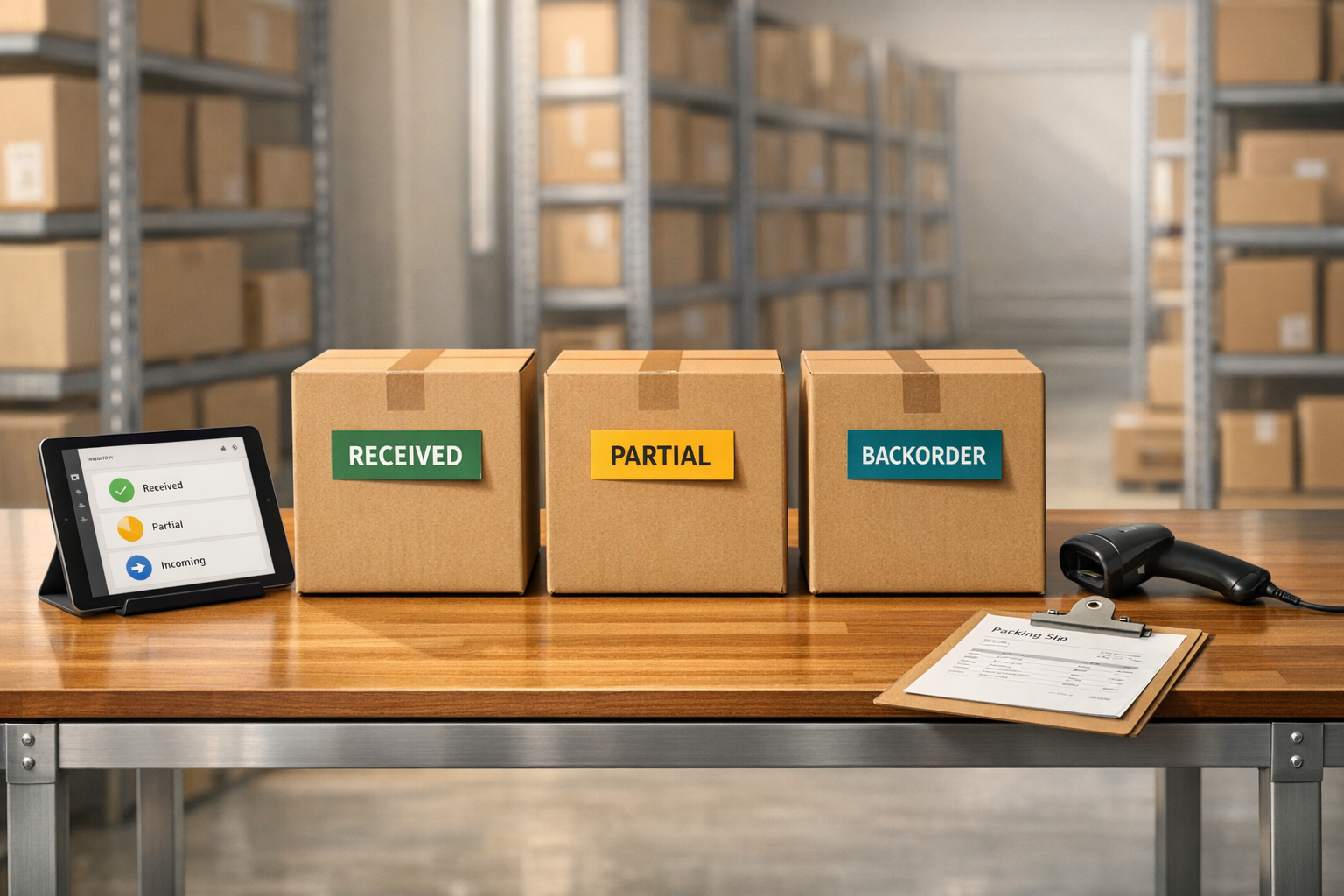
Stocky is shutting down on August 31, 2026, leaving Shopify merchants without key inventory management tools. If you handled purchase orders, backorders, or partial receipts with Stocky, you’ll need a new system to manage these tasks effectively. Shopify Admin offers basic inventory tracking, but it lacks advanced features like automated purchase orders, precise cost tracking, and integrated supplier communication.
Key points to know:
- Shopify Admin tracks inventory in four states: Available, On hand, Incoming, and Unavailable.
- It requires manual steps for managing purchase orders, partial shipments, and backorders.
- Limitations include no built-in supplier communication, limited cost precision, and fragmented workflows for incomplete shipments.
Solution options:
- Use Shopify Admin for manual inventory updates and purchase order tracking.
- Consider tools like Forstock to automate workflows, track backorders, and manage incoming stock more efficiently.
With Stocky’s shutdown approaching, it’s critical to set up a system that ensures accurate inventory management and avoids disruptions in your operations.
What Shopify Can and Cannot Do Without Stocky

How Shopify Tracks Inventory
Shopify Admin organizes inventory into four key states: Available (ready-to-sell stock), On hand (total physical stock at a location), Incoming (units tied to open purchase orders or transfers), and Unavailable (items held for Quality Control, Safety Stock, or similar purposes). When a purchase order is received, Shopify automatically moves quantities from Incoming to Available at active locations, while stock at inactive locations remains classified as On hand. Every adjustment is logged with details like user, timestamp, and reason for the change.
While this system efficiently tracks inventory movement, it lacks the tools needed for comprehensive purchase order management, revealing some critical gaps.
What Shopify Admin Cannot Do on Its Own
Shopify Admin's limitations become clear when handling more complex inventory workflows. For instance, it doesn’t allow you to email purchase orders directly from the platform. Instead, you need to export the order as a PDF and email it manually. Additionally, Shopify lacks features like reorder suggestions, supplier lead time tracking, and a consolidated vendor list within the purchase order interface. Another significant shortfall is its cost price tracking, which is limited to 2 decimal places, unlike Stocky’s 4 decimal places. This can cause rounding errors, especially when dealing with high-volume, low-cost items.
When shipments arrive incomplete, Shopify’s workaround is to mark missing items as "rejected" and create a new purchase order for the remaining items. However, this process fragments your open orders, making it harder to track total outstanding liabilities.
Here’s a quick comparison of key features:
| Feature | Stocky | Shopify Admin (Native) |
|---|---|---|
| PO Creation | Automated suggestions based on forecasts | Manual entry or CSV import |
| Supplier Communication | Email directly within the PO interface | Manual PDF export and external email |
| Receiving Document | Separate from vendor PO, includes retail prices | Same as vendor PO; no visibility of retail prices |
| Label Printing | Integrated (e.g., Dymo) directly from PO | Requires CSV export or third-party app |
| Backorder Tracking | Centralized tracking of partial and open orders | Manual workaround; requires creating new POs |
| Landed Costs | Built into margin calculations | Limited; doesn’t auto-update cost of goods |
| Cost Price Precision | 4 decimal places | 2 decimal places |
The lack of precision in cost tracking can lead to inaccuracies in margin calculations, which becomes a bigger issue without Stocky’s capabilities. These gaps highlight the need for manual workarounds, which we’ll explore in the next section.
Real-World Challenges
These limitations aren’t just theoretical - they’ve caused real issues for merchants. For example, some have noticed discrepancies with linked transfers. In one case, Shopify automatically recorded the full ordered quantity as received, even when the shipment was short. One merchant shared their experience:
"The Purchase Order was then automatically received, BUT it received the amount of stock ordered, and not the quantity of stock actually received on the transfer." - Emma_Robson, Merchant
This kind of error can artificially inflate stock counts, creating potential problems down the line. To avoid this, merchants often have to manually verify received quantities, adding yet another step to their workflow.
sbb-itb-f0fc809
How to Receive Inventory in Shopify? #shopify #shopifytutorial
Building Inventory Receiving Workflows in Shopify Admin
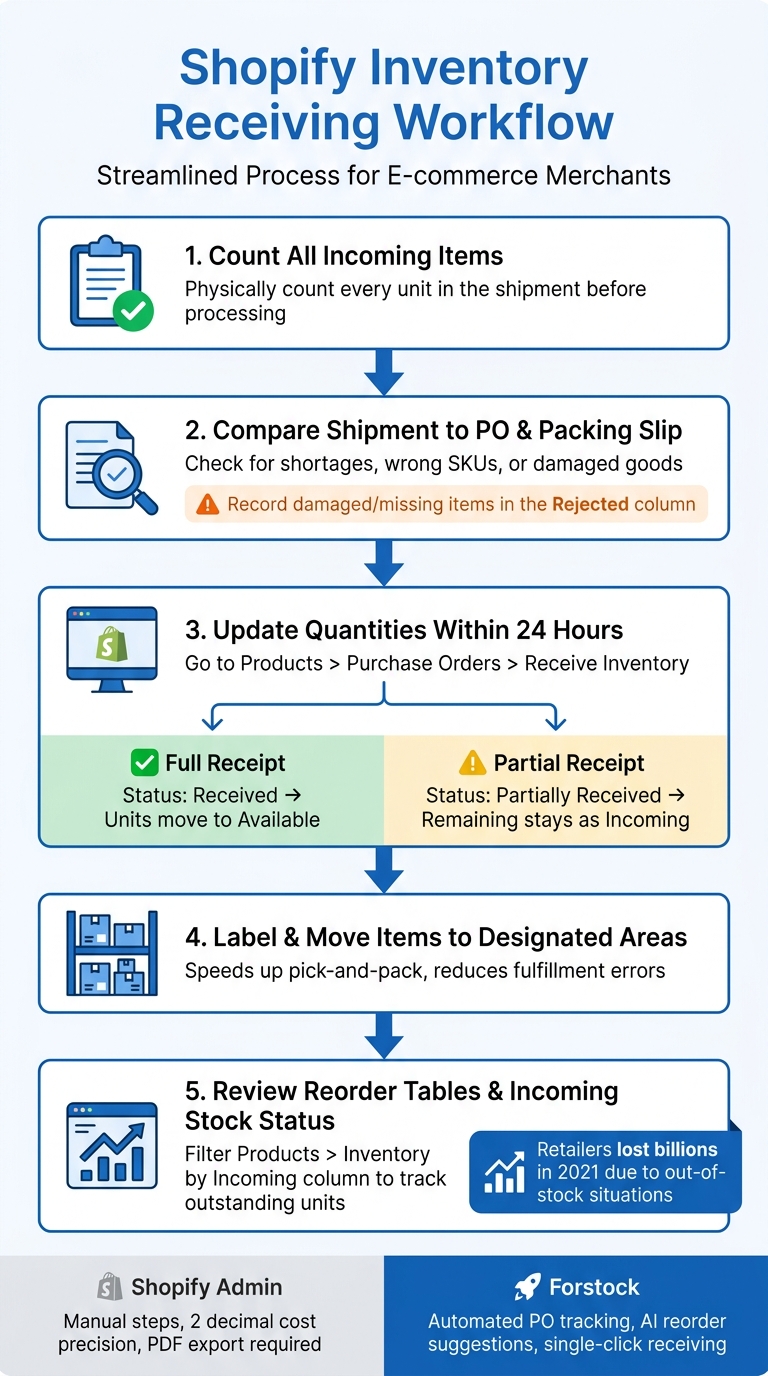
Shopify Inventory Receiving Workflow: From Shipment to Stock
Getting Your Inventory Data Ready
Before you start receiving shipments, it's crucial to ensure your product data is clean and well-organized. Each product variant needs a unique SKU, and the "Track quantity" option must be enabled in the variant's Inventory settings. Without this, Shopify won’t automatically update stock levels when you process a purchase order.
Make sure that every physical location - whether it’s your warehouse, retail store, or 3PL - is set up as a separate Location in Shopify. Inventory received at a location only becomes Available (sellable) if the product is active there. If the product isn’t active at the destination, the stock will be marked as On hand but won’t show up for sale. To avoid future headaches, review your product list and location assignments before processing your first receipt.
Once your inventory data is ready, you can set up a manual purchase order (PO) system to streamline your workflow.
Building a Manual Purchase Order System
Shopify Admin doesn’t save default payment terms or currencies for supplier profiles, meaning you’ll need to input these details manually each time you create a PO.
"Payment terms and supplier currencies are set on each purchase order, not saved as defaults on the supplier profile... Document the standard terms per supplier in your own notes so staff can enter them consistently." - Kijun Stocky Migration Guide
A practical workaround is to maintain a Google Sheet with supplier reference data. Include columns for supplier name, contact email, standard payment terms (e.g., Net 30), preferred currency, and typical lead time. This sheet acts as a quick reference when creating POs in Shopify Admin under Products > Purchase orders.
To keep things organized, establish a consistent PO naming convention, such as PO-2026-001. This makes it easier to track PDFs and records, especially when you’re manually emailing orders to vendors.
With this manual system in place, you’ll be ready to efficiently handle full shipment receipts.
Recording Full Shipment Receipts in Shopify Admin
When a shipment arrives in full, the easiest way to process it is through the purchase order. Open the PO in Products > Purchase orders, ensure the status is Ordered, then click Receive inventory. Enter the received quantities for each line item and hit Save. Shopify will automatically move those units from Incoming to Available, and the PO status will update to Received.
For situations where stock arrives without a formal PO - like a one-off supplier drop - you can use a Manual Adjustment. Navigate to Products > Inventory, select the location, click on the product’s quantity, choose Adjust by, enter the received units, and select Received as the adjustment reason. Using "Adjust by" instead of "Set to" is safer because it accounts for any sales that may occur during the update. Aim to complete these updates within 24 hours of delivery to keep your stock counts accurate.
Managing Partial Receipts and Backorders
How to Record a Partial Receipt
Partial shipments happen for a variety of reasons - suppliers might face shortages, items could get damaged during transit, or manufacturers may split large orders into smaller shipments. To handle these in Shopify, go to Products > Purchase orders in the Admin section and open the relevant purchase order (PO). Click Receive inventory and, in the Accepted column, input the quantities that actually arrived. If there are damaged items that won't be replaced, record those in the Rejected column to remove them from your Incoming count. Once done, hit Save, and Shopify will automatically update the PO status to Partially received.
Here's what happens next:
- Accepted units move from Incoming to Available inventory.
- Remaining units stay under Incoming until they arrive.
If you make an error during this process, you can fix it by reopening the PO, selecting Receive inventory, and entering a negative adjustment in the Accepted column.
"Getting the correct tools and integrations to track inventory in real time is one of the best things you can do for your tracking inventory." - Daniel Hedegaard, Head of Press, Cool Parcel
Once you've recorded the partial receipt, it’s essential to keep an eye on the stock that’s still outstanding.
Tracking Outstanding and Incoming Stock
After processing a partial receipt, it’s critical to track the quantities still expected. Shopify calculates Incoming inventory as the total ordered minus the accepted and rejected amounts. For instance, if you ordered 50 units, accepted 30, and rejected 5, Shopify will show 15 units as still incoming.
To check this, go to the Products > Inventory page and filter by the Incoming column. This view highlights products with outstanding quantities. Failing to monitor incoming stock can lead to costly stockouts. In fact, retailers faced billions in losses in 2021 due to overstock and stockout issues.
Once you're confident that your incoming stock is properly tracked, you can set up backorders to keep sales flowing.
Setting Up Backorders in Shopify
Backorders allow customers to purchase items that are temporarily out of stock, with the promise of shipping once new inventory arrives. To enable backorders in Shopify, adjust two settings for the product or variant:
- Track quantity must be turned on.
- Enable "Continue selling when out of stock".
Use this feature selectively. Only enable it for SKUs tied to an active purchase order with a confirmed lead time from your supplier. If you turn it on without ensuring the incoming stock matches, you risk overselling beyond what’s on the way. Always verify that backordered sales stay within the Incoming quantity listed on the PO.
Keep in mind, the "Continue selling when out of stock" setting doesn’t apply to Shopify POS. POS staff can sell items regardless of stock levels, though they will see a warning when an item is out of stock.
Using Forstock to Simplify Receiving and Tracking
Relying on manual tools like spreadsheets, Shopify Admin tweaks, and constant monitoring of POs can be a drain on time and a source of errors. Forstock eliminates these inefficiencies, providing a smoother way to handle these tasks. This approach forms the backbone of effective purchase order (PO) management within the platform.
Managing Purchase Orders and Receipts in Forstock
Forstock brings everything related to purchase orders - creation, tracking, and closing - into one place. You can create a PO in just minutes using templates or by importing bulk data with CSV files. Orders can be split by warehouse location, and costs like freight and duties are factored in to ensure precise COGS (cost of goods sold) tracking.
When shipments arrive, marking items as received is as simple as a single click. For partial shipments, you can record the exact quantities received, and Forstock will automatically track the remaining balance as outstanding. Inventory updates then sync with Shopify, either automatically or manually, depending on your preferences. Daniel, a Supply Chain Manager, summed it up perfectly:
"It is the first tool that actually bridges inventory management and purchasing instead of forcing us to hack things together."
Tracking Backorders and Incoming Stock Across Locations
Juggling inventory at multiple locations can get messy, but Forstock simplifies it by consolidating all on-hand, committed, and incoming stock into a single dashboard. Live order statuses show where shipments stand - whether in production, in transit, delayed, or received.
You can also create custom saved views filtered by location, product, or time frame, ensuring each warehouse team sees only the information they need. Emily, an Inventory Manager, shared her experience:
"I open the dashboard in the morning and instantly know what needs reordering, what is overstocked, and what to focus on."
This level of visibility helps avoid backorder issues. For example, if a SKU has "Continue selling when out of stock" enabled, you can easily determine if incoming shipments will cover backordered sales.
Forecasting Demand and Automating Reorders
Forstock's AI-powered Reorder Table helps you stay ahead of potential stockouts. It evaluates sales patterns, lead times, and seasonality to pinpoint which SKUs need restocking and which might be overstocked. Matt, Operations Lead at TechGear, highlighted the impact:
"Forstock has been great. We're preventing stockouts that were costing us $50K monthly. The AI predictions are incredibly accurate."
The platform also automates PO creation, saving over 10 hours each week and reducing excess inventory by up to 45%. This frees up a significant amount of working capital.
Conclusion: A Repeatable Inventory Receiving Process
Making inventory receiving consistent means sticking to a process: count every shipment, compare it to the purchase order (PO), record everything promptly, and flag any issues. As Liam, Operations Director, puts it:
"We have cut manual inventory tasks by at least 60%."
This kind of improvement comes from sticking to a clear, repeatable system.
Here’s a breakdown of the essential steps for an effective receiving routine, whether you’re working in Shopify Admin or leveraging Forstock for more automation:
| Step | Key Action | Why It Matters |
|---|---|---|
| Count | Count all incoming items | Confirms what the supplier actually sent |
| Verify | Compare shipment to PO and packing slip | Catches shortages, wrong SKUs, or damage early |
| Record | Update quantities in Shopify or Forstock within 24 hours | Keeps available stock accurate for customers |
| Organize | Label items and move to designated stockroom areas | Speeds up pick-and-pack and reduces fulfillment errors |
| Monitor | Review reorder points and incoming stock status | Prevents future stockouts before they happen |
By following these steps, you maintain accuracy and avoid overselling. It’s crucial to record receipts within 24 hours of delivery. Delaying this step can lead to inventory gaps, overselling, and missed sales opportunities.
Jason, Co-founder of HomeGoods, highlighted the benefits of refining this process:
"We reduced excess inventory by 45% and freed up $150K in working capital."
With Stocky set to shut down on August 31, 2026, now is the perfect time to establish a dependable workflow that doesn’t rely on one tool. Using Shopify Admin's built-in receiving features alongside Forstock's automated PO tracking creates a scalable system that keeps operations running smoothly.
FAQs
How do I prevent Shopify from overstating received inventory?
To ensure inventory records are accurate, always match purchase orders and transfers with the actual quantities delivered. If you notice discrepancies, such as damaged or missing items, adjust the count by entering a negative number in the Accepted column. In cases where a purchase order has been incorrectly marked as fully received, you’ll need to manually update the quantities or adjust the inventory levels accordingly. Make it a habit to verify shipments as soon as they arrive and maintain thorough records to minimize errors.
What’s the cleanest way to handle partial shipments without losing PO history?
To handle partial shipments without losing track of your purchase order (PO) history, Shopify Admin’s PO system offers accepted and rejected columns. Use the accepted column to log items you’ve received, while the rejected column is for items that are missing or damaged. This setup ensures received stock updates your inventory, and any unreceived items stay marked as incoming. If you make a mistake, you can fix it by entering a negative adjustment to keep your records accurate.
How can I keep backorders from overselling beyond incoming stock?
To prevent overselling, it’s smart to set an inventory buffer by reserving a portion of your stock as safety stock. For instance, if you have 10 units available, list only 8 as sellable. Additionally, fine-tune your reorder points with this formula: (Average Daily Sales × Lead Time Days) + Safety Stock. Keeping your inventory data updated in real time is another essential step to avoid discrepancies and ensure accurate stock levels.
Keep reading
Try Forstock free for 14 days.
AI-powered demand forecasting and reorder automation for Shopify brands. No credit card required.