
How to Automate Inventory Updates for Shopify
Automate Shopify stock updates to maintain real-time inventory, prevent stockouts, and streamline reorders across sales channels.
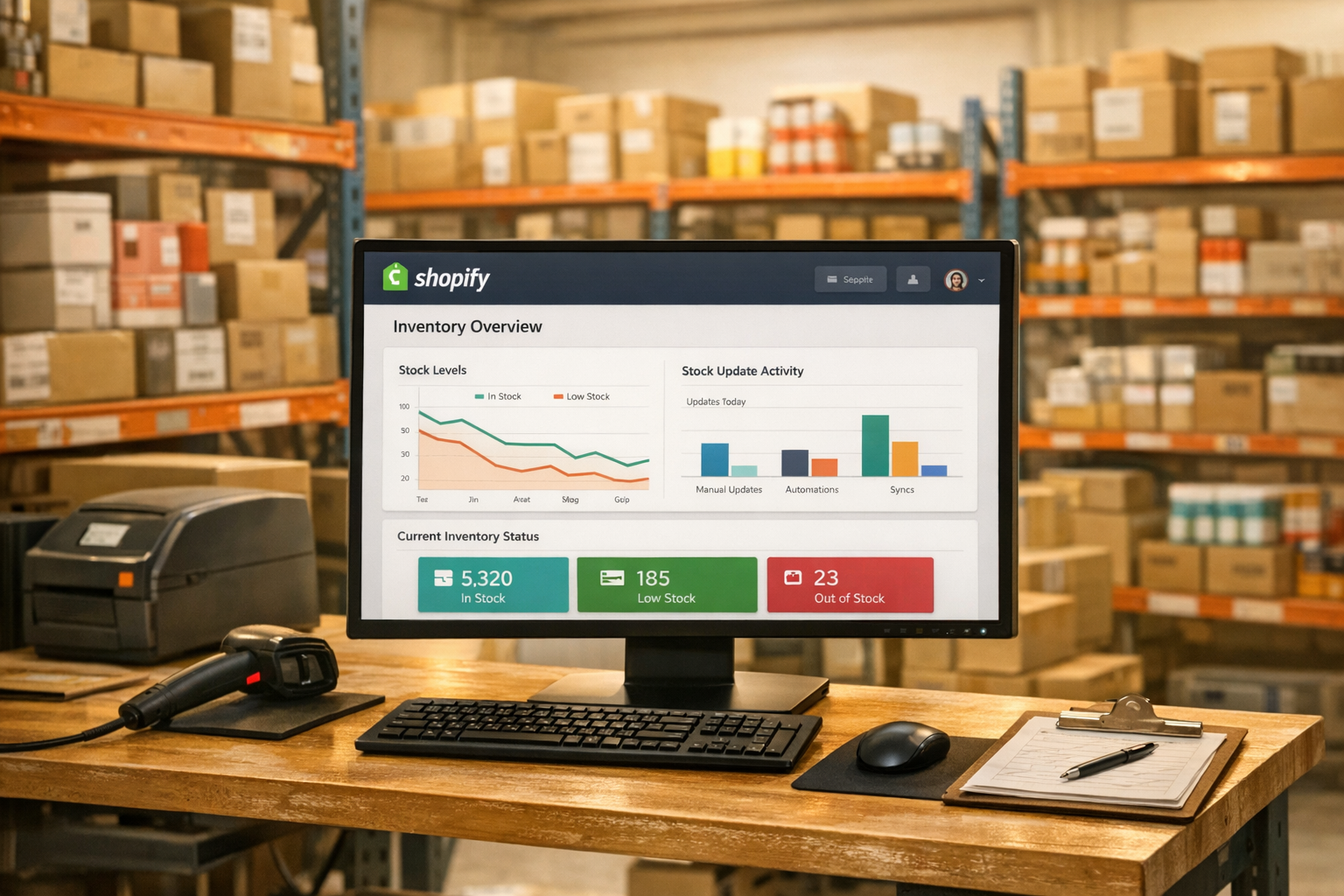
How to Automate Inventory Updates for Shopify
Running a Shopify store can be overwhelming, especially when managing inventory manually. Automation solves this by keeping your stock levels accurate in real-time, reducing errors, and saving you hours of work. Here's how it helps:
- Real-Time Updates: Tools like Forstock sync inventory across all channels instantly.
- Improved Accuracy: RFID and barcode scanning reduce errors, achieving up to 99% accuracy.
- Reorder Alerts: Automation triggers low-stock alerts and even auto-generates purchase orders.
- Efficiency Gains: Retailers like Oak + Fort saved 50 hours weekly and cut costs by 47%.
To get started:
- Enable inventory tracking in Shopify.
- Clean up product SKUs and data.
- Choose an inventory automation app like Forstock.
- Set reorder points and automate supplier communication.
Automation simplifies inventory management, reduces stockouts, and ensures smooth operations, even during high-traffic events like Black Friday. Ready to streamline your processes? Start with small steps, like automating your top-selling products, and scale from there.
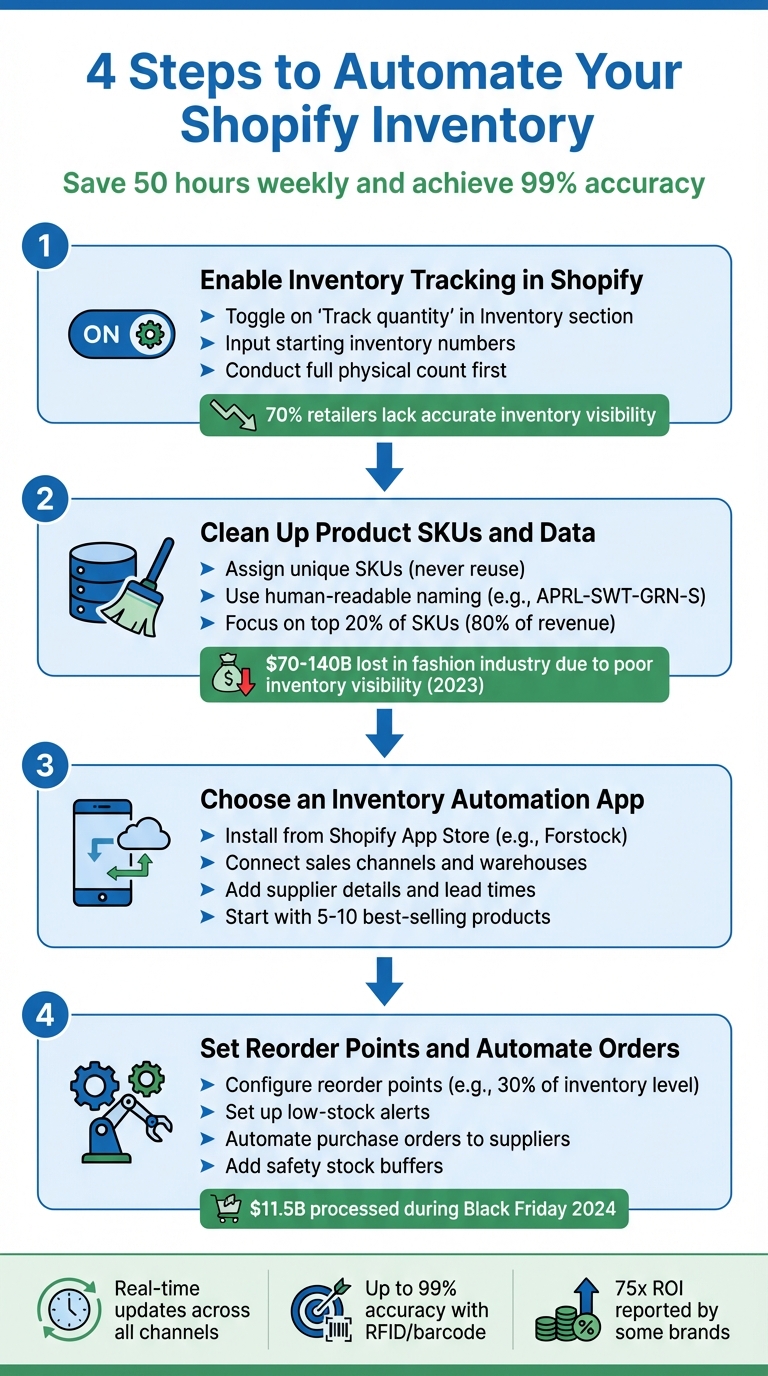
4-Step Guide to Automating Shopify Inventory Updates
How to Automate Your Shopify Store Using Shopify Flow

sbb-itb-f0fc809
Preparing Your Shopify Store for Inventory Automation
Getting your Shopify store ready for inventory automation is like setting the stage for a smooth performance. Without the right groundwork, even the most advanced tools won’t run as expected. To ensure everything runs seamlessly, start by enabling key Shopify settings.
Turn On Inventory Tracking in Shopify
First, enable inventory tracking for your products so Shopify can automatically update stock levels. Head to the Inventory section of any product in your Shopify admin and toggle on the "Track quantity" option. If you’re dealing with a large inventory, you can simplify this process by importing a CSV file with the necessary updates.
Once tracking is active, input your starting inventory numbers - the "Available" units for each SKU. This establishes a baseline that automation tools will rely on. You’ll also need to decide whether to allow products to "Continue selling when out of stock." Shopify provides an inventory adjustment history for up to 180 days, which can be incredibly helpful for tracking multi-location stock and auditing your automation setup.
Here’s a surprising stat: retailers only achieve accurate inventory visibility about 70% of the time. To avoid falling into this category, conduct a full physical count before enabling digital tracking. This step not only improves accuracy but can also increase sales by up to 11%.
Clean Up Product Data and SKUs
Accurate product data is the backbone of successful automation. Start by assigning each product variant a unique SKU that’s never reused. These alphanumeric codes allow automation tools to track items across all your sales channels effectively.
It’s also a good idea to use a human-readable naming system for your SKUs. For instance, "APRL-SWT-GRN-S" clearly identifies an Apparel-Sweater-Green-Small product, unlike a random string of numbers that can create confusion.
Once you’ve standardized your SKUs, export your inventory to verify that all data is accurate. For stores with extensive catalogs, exporting inventory into a CSV file offers an efficient way to audit and clean up your records. Pay special attention to the "Handle", "Location", and "SKU" columns - Shopify relies on these to correctly identify product variants. Remember, location names must match those in your Shopify admin exactly, including capitalization (e.g., "Warehouse-A" won’t align with "warehouse-a"). For products not available at specific locations, use not stocked in your CSV file to avoid automation errors.
Here’s a pro tip: focus on your top-selling items using ABC analysis to improve inventory turnover metrics. This method highlights the "A" items - the 20% of SKUs that typically generate 80% of your revenue. Conduct weekly counts of these top sellers to keep your data precise. It’s worth noting that poor inventory visibility cost the fashion industry an estimated $70–$140 billion in lost sales in 2023 alone. Keeping your top sellers in check can help prevent similar losses in your store.
How to Set Up Automated Inventory Updates
Now that your store is ready, it’s time to bring in an automation tool to simplify inventory updates. This process boils down to three key steps: installing the right app, setting up reorder triggers, and automating supplier communication.
Install and Connect an Inventory Automation App
Start by selecting an inventory automation app from the Shopify App Store. One option, Forstock, is tailored for Shopify brands and offers features like real-time demand forecasting, automated purchase order creation, and supplier management - all accessible through one dashboard. Its AI-driven system adapts to sales trends, lead times, and seasonal demand.
To get started, install Forstock directly from the Shopify App Store. Click "Add app", authorize data sharing, and follow the setup wizard. During setup, you’ll link your sales channels, import inventory data, and configure warehouse locations to sync with Shopify. Make sure to enable "Track Quantity" in your Shopify Admin under Settings > Inventory, so the app can synchronize with your Shopify inventory automatically.
Next, add your supplier details, including contact information, lead times, and Minimum Order Quantities (MOQs). This information is crucial because the app uses it to calculate the best time to reorder. Map your supplier's data fields to Shopify’s inventory fields - like ensuring the supplier’s "QTY" or "Available" column matches Shopify's inventory count. This prevents your store from showing items as out of stock when they’re actually available.
Pro tip: Begin by automating just 5–10 of your best-selling products for a few weeks. This lets you monitor for missed alerts or count discrepancies before rolling it out to your entire catalog. It’s a low-risk way to spot and fix any configuration issues early.
Set Up Automation Rules and Reorder Points
Once your app is connected, it’s time to configure the rules that will trigger restocking. Reorder points act as signals for when it’s time to replenish inventory. These should be based on your sales velocity. For example, you might set a reorder point at 30% of your typical inventory level.
Forstock’s AI-powered forecasting can help here by analyzing your sales trends, seasonal shifts, and supplier lead times to suggest ideal reorder points. You can tweak these settings to fit your needs. Let’s say your supplier takes two weeks to deliver, and you sell 50 units per week. In this case, you’d want a reorder point of about 100 units, including a safety buffer.
To avoid overselling, consider using safety stock. For instance, if you have 10 units available, list only 8 as sellable. This is especially important during high-traffic events where even a slight sync delay could lead to overselling. During Black Friday Cyber Monday 2024, Shopify merchants processed $11.5 billion in sales, with peak traffic hitting $4.6 million per minute. A safety buffer can prevent stockouts during such busy periods.
Set up low-stock alerts to notify you via email or in-app messages when inventory drops below your set thresholds. You can also add failover logic: if your primary supplier’s stock dips below a certain level (e.g., 2 units or fewer), the system can automatically switch to a backup supplier. This ensures you’re prepared for supplier shortages.
Lastly, align your automated sync schedule with your supplier’s local time zone and shipping cut-off times. For instance, if your supplier ships orders placed before 3:00 PM EST, schedule your inventory updates to pull data before that cutoff to ensure you’re working with the most up-to-date information.
Automate Purchase Orders and Supplier Notifications
When inventory reaches your reorder point, Forstock can automatically generate a Purchase Order (PO) and send it to your supplier, either via email or through the app’s supplier portal.
You can customize notification triggers based on your needs. For high-velocity items, automate the PO process entirely. For more expensive products, you might prefer to review POs manually before sending them.
In 2025, the French underwear brand We Are Jolies adopted automated inventory management to oversee stock across multiple warehouses. By using automated reorder alerts and supplier communication, they cut stockouts by 60% and improved demand forecasting across all their sales channels. Some Shopify brands have even reported achieving up to a 75x return on investment by switching from manual vs. automated inventory management to AI-driven planning.
For simpler automation, Shopify Flow can create low-stock triggers to notify your team via Slack or email. However, for a complete solution that includes PO creation and supplier communication, tools like Forstock offer more robust capabilities.
To wrap up, schedule daily reconciliations to double-check that your Shopify inventory matches your supplier’s data. This helps catch any API or sync issues early.
Advanced Features for Better Inventory Automation
Use AI-Powered Demand Forecasting
AI-driven demand forecasting taps into historical data, seasonal trends, and growth patterns to predict inventory needs. It even creates automated buying tables, making purchase order creation as simple as a single click.
Forstock’s AI tools are designed to adapt to factors like sales velocity, lead times, and seasonality. These tools help businesses determine exactly what to order, when to order it, and how much to stock. For example, the automated "Buying Tables" generated by Forstock can seamlessly integrate with Shopify, allowing users to create purchase orders instantly. In 2025, Kate Hewko, an online beauty brand, implemented AI-based procurement across two warehouses, boosting operational efficiency by 40%. Similarly, Healf transitioned from manual spreadsheets to predictive planning and reported an astounding 75x return on investment.
For products with short lifecycles or new launches, it’s wise to blend automated forecasts with manual input. This ensures that unique factors not yet captured by the data are taken into account. With accurate forecasting in place, businesses can streamline inventory synchronization across multiple sales channels.
Sync Inventory Across Multiple Sales Channels
While forecasting is key, maintaining real-time inventory synchronization across platforms is equally important. Whether you’re selling on Shopify, Amazon, Etsy, or other platforms, keeping stock levels accurate across all channels ensures smooth operations and avoids customer frustration. In fact, 90% of shoppers say real-time stock availability is crucial for a positive shopping experience. In 2022 alone, out-of-stock situations cost retail businesses in the US and Canada a staggering $349 billion.
To achieve effective synchronization, start by establishing a central inventory management system that serves as the single source of truth. This eliminates the need to update stock levels on each platform manually. Standardize your SKUs across all platforms to avoid mapping errors or duplicate entries. By connecting Shopify to external sales channels using API keys, you can grant permissions for "Products", "Inventory", and "Locations". Next, map your physical warehouses or third-party logistics (3PL) providers to Shopify’s digital locations, ensuring stock is deducted from the correct inventory pool.
You’ll also need to configure sync rules, such as setting update intervals (real-time or every 10 minutes) and defining allocation priorities for specific channels or regions. Before activating live automation, perform a thorough stock reconciliation to align inventory levels across all platforms.
A great example of this in action is Rider Shack, a surf shop owned by Jeff and Lacey Glass. In September 2025, they used Webgility to sync inventory between their retail store and their Magento-based online shop. The result? They saved $1,400 per month, reduced inventory management time by 15 hours per week, and cut shipping processing time by 25%.
Track Performance and Adjust Automation Settings
Once your inventory updates and synchronization are automated, it’s important to track performance metrics and fine-tune the system. Tools like MAPE (Mean Absolute Percentage Error) and FVA (Forecast Value Added) can help you measure forecast accuracy and assess the effectiveness of automation adjustments.
Keep an eye on metrics like Days of Supply (DOS) and stock-out rates. For instance, a low DOS paired with frequent stock-outs might indicate overly aggressive automation settings, while a high DOS with no stock-outs could mean too much capital is tied up in inventory. Additionally, track supplier lead times by comparing actual delivery dates to the lead times programmed into your software. This helps refine reorder points for even greater precision. To measure ROI, compare manual vs. automated purchase orders to measure the time saved through automation.
In 2025, the jewelry brand Kimai consolidated three Shopify stores into a single AI-powered platform. This move reduced delivery times by 43% and cut production costs by 11%, all thanks to improved demand visibility. You can also set custom stock alerts to trigger based on sales trends, such as notifying you when stock falls below 14 days of projected sales. Lastly, clean your data regularly by removing outliers, like one-time spikes, to prevent the AI from overestimating future demand.
Conclusion: Simplify Your Shopify Inventory Management
Key Takeaways
Using automation to manage your Shopify inventory can completely change how you handle stock. It keeps your inventory updated in real-time across all sales channels, prevents stockouts, and stops overselling. To get started, enable inventory tracking in your Shopify admin and standardize your SKUs to keep your data organized. Automation offers real-time visibility, speeds up order fulfillment, and cuts costs by reducing overstock and avoiding stockouts.
Tools like Forstock take automation to the next level. They combine real-time inventory tracking with AI-driven demand forecasting. This means you're not just reacting to changes in stock - you’re anticipating them. With features like automated purchase orders (POs) and supplier notifications, Forstock helps you maintain optimal stock levels while keeping your cash flow in check. It boasts accuracy rates of up to 95% and allows you to monitor performance across multiple locations, saving you hours of manual work.
Automation also enhances forecasting by analyzing past trends to predict seasonal peaks and automatically adjust reorder points. These insights help you refine your inventory processes as you integrate automation into your workflow.
Next Steps
Ready to streamline your inventory management? Start by enabling inventory tracking for all your product variants and assigning unique SKUs to each one. This ensures automation tools can correctly map supplier feeds. Once your system is set up, try a tool like Forstock, which offers a 14-day free trial and starts at $79/month, making it accessible for businesses of any size.
After connecting your automation tool, set reorder points and safety stock buffers to avoid running out of stock during busy periods. For example, if you have 10 units, show only 8 as available to account for any sync delays. Finally, keep a close eye on metrics like Days of Supply, stock-out rates, and lead times to fine-tune your system. The goal is to not only automate but to keep improving your processes as your business grows.
FAQs
How do I set up SKUs for seamless inventory automation on Shopify?
To make sure your SKUs integrate seamlessly with automated inventory systems, follow these steps:
- Stick to a consistent naming format: Develop a clear, logical structure that reflects key product attributes like type, color, and size (e.g.,
TSHIRT-MEN-NAVY-L). Consistency helps avoid processing hiccups. - Assign unique SKUs for every variant: Each product variation, such as size or color, should have its own distinct SKU. Never reuse SKUs across different items.
- Keep SKUs straightforward: Use alphanumeric characters, along with hyphens or underscores. Avoid spaces or special symbols that could trigger errors.
- Activate inventory tracking: In Shopify, enable the Track quantity option for each SKU to keep stock levels updated in real time.
Before launching, double-check your SKU list to ensure there are no duplicates or mistakes. Run a few test orders to verify that inventory updates sync correctly between Shopify and any connected tools. Well-organized SKUs are key to avoiding stockouts, overstock issues, and inefficiencies in managing your inventory.
What should I do if my automated inventory system shows discrepancies in Shopify?
If your automated inventory system flags any discrepancies, the first step is to double-check your source data. Cross-reference stock counts from your suppliers, fulfillment centers, or POS systems with the inventory numbers listed in Shopify. Pinpoint the exact type of mismatch - whether it’s incorrect quantities, SKU-related errors, or timing issues caused by delayed updates.
Then, dive into your recent transaction logs. Look at sales, returns, and purchase orders to identify any missed or duplicate entries that could be throwing off your numbers. For smaller mistakes, you can manually adjust the inventory in Shopify. If the issue is bigger or happens frequently, consider using tools like Forstock to sync and correct your data in real time. Be sure to document the issue, update your workflows, and set up alerts to catch similar problems early on.
Taking quick action to resolve these errors and improving your processes will help keep your inventory accurate and ensure your Shopify store runs smoothly.
How does AI-powered demand forecasting help improve inventory management?
AI-powered demand forecasting leverages advanced algorithms to dissect sales trends, seasonal shifts, promotional impacts, and supplier lead times. This enables businesses to predict inventory needs with precision, helping them make better purchasing decisions.
By automating reorder suggestions, this method minimizes stockouts, avoids overstocking, and simplifies inventory management. The result? Merchants save time, improve cash flow, and consistently have the right products on hand to meet customer demands.
Keep reading
Try Forstock free for 14 days.
AI-powered demand forecasting and reorder automation for Shopify brands. No credit card required.