
Shopify Inventory Not Updating: Causes and Fixes
Troubleshoot Shopify inventory sync issues: enable tracking, standardize SKUs, reconnect apps, fix CSVs and use real-time tools to prevent overselling.
Shopify Inventory Not Updating: Causes and Fixes
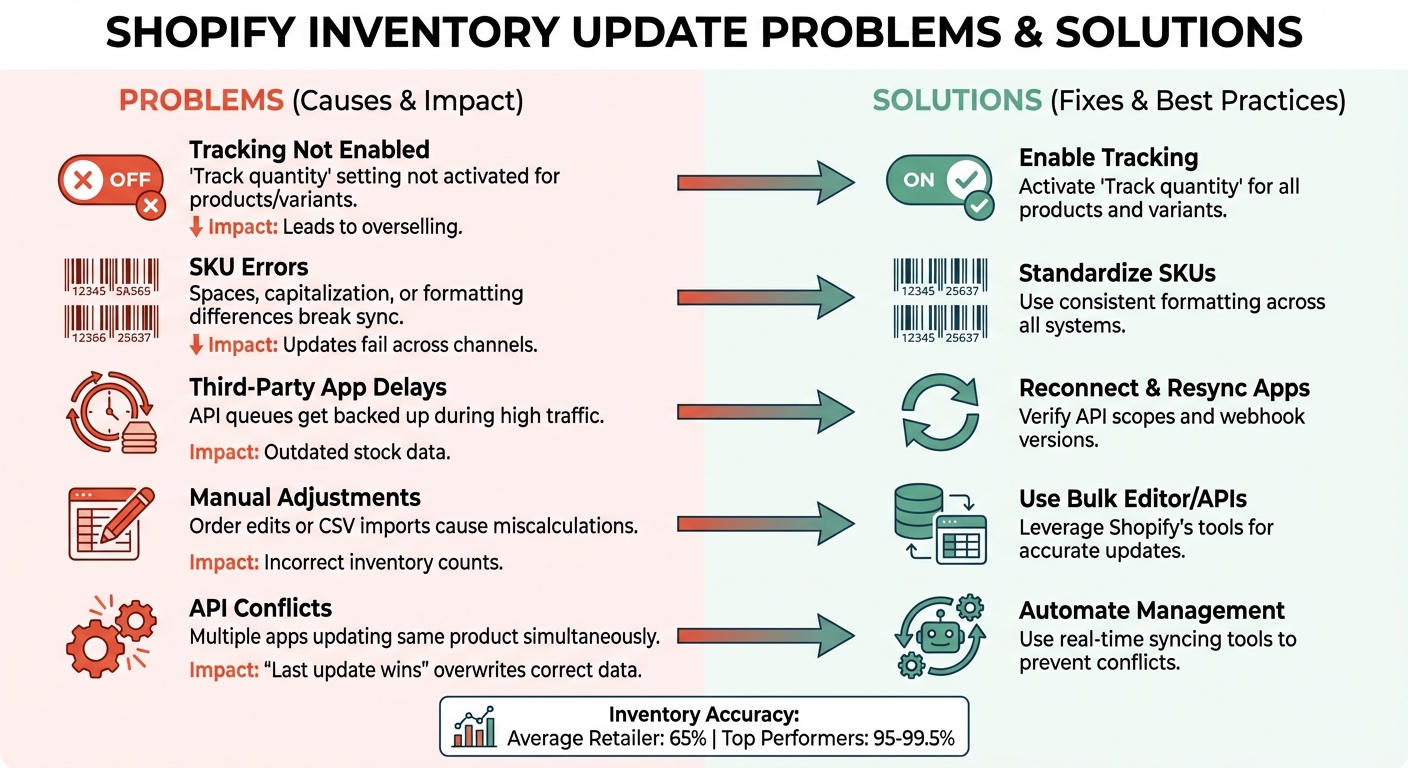
Shopify inventory issues can lead to overselling, canceled orders, and lost revenue. The main culprits? Problems like disabled inventory tracking, SKU mismatches, app sync delays, and manual errors. These disrupt Shopify's ability to accurately update stock levels, especially if you're selling across multiple platforms like Amazon or Etsy.
Key Causes of Inventory Problems:
- Tracking Not Enabled: Inventory updates only work if the "Track quantity" setting is active.
- SKU Errors: Even small differences in SKUs (e.g., spaces, capitalization) can break updates.
- Third-Party App Delays: Syncing with apps like Amazon can lag, causing outdated stock data.
- Manual Adjustments: Edits to orders or CSV imports often lead to miscalculations.
- API Conflicts: Multiple apps updating the same product can overwrite correct data.
Fixes at a Glance:
- Enable "Track quantity" for all products and variants.
- Standardize SKUs across all systems to avoid mismatches.
- Reconnect and resync third-party apps to resolve syncing issues.
- Use Shopify’s bulk editor or APIs for accurate updates.
- Automate inventory management with tools like Forstock for real-time syncing.
By addressing these issues and automating key processes, you can keep inventory accurate, reduce errors, and save hours of manual work.
5 Common Causes of Shopify Inventory Issues and Their Fixes
How To Fix Shopify Product Inventory Not Syncing

Why Shopify Inventory Fails to Update
To keep your Shopify inventory management running smoothly, it’s important to understand why it might stop updating in the first place. Shopify relies on specific triggers and settings to track stock levels, and when these processes break down, your inventory can quickly fall out of sync. Let's dive into the most common reasons behind these issues.
Inventory Tracking Isn’t Automatic
One of the most frequent culprits is forgetting to enable the "Track quantity" setting. This feature isn’t turned on by default, so you must manually activate it for every product and variant. When products are duplicated, the tracking settings don’t carry over, leaving the new items untracked. This can lead to issues like overselling, especially if you're managing products with multiple variants - each size, color, or style option needs its own tracking enabled.
Delays from Third-Party Apps
If you’re using third-party platforms like Amazon, Etsy, or warehouse management systems, inventory updates rely on API queues to communicate with Shopify. During busy times, these queues can get backed up, causing delays in syncing stock levels. Shopify also follows a "last update wins" rule, meaning the most recent change - whether it’s from an app or a manual edit - overrides previous updates. This can sometimes result in inaccurate inventory data.
Errors from Manual Edits and CSV Imports
Making manual changes to orders can disrupt Shopify’s inventory calculations. For example, if you adjust an order’s fulfillment status or modify line items, Shopify may not update the stock levels properly. This is especially problematic when dealing with multiple locations or partially fulfilled orders.
CSV imports can also be tricky. Shopify uses a safety validation process to prevent accidental overwrites by comparing the "On hand (current)" column in your file with live store data. If sales occur between the time you export and import data, Shopify might reject the update entirely. Formatting inconsistencies across CSV files can further complicate the process, leading to mismatched or incomplete updates.
SKU Mismatches and Sync Issues
Shopify identifies products using SKU codes, so even minor discrepancies - like extra spaces, missing hyphens, or capitalization differences - can break synchronization. As Bhoomi Singh from Sumtracker explains:
"Shopify only updates inventory when the SKU matches exactly. Minor differences such as hyphens, spaces, or variant naming break the sync, causing one channel to update while Shopify stays unchanged".
Duplicate SKUs create even bigger problems. If multiple products share the same SKU, Shopify can’t determine which item to adjust. In these cases, the "last update wins" rule applies, which can lead to incorrect stock counts.
Inventory Tracking Disabled on New Products
By default, Shopify doesn’t track inventory for new products unless you enable the "Track quantity" option. This setting is located in the inventory section of each product page. Many merchants overlook this step, especially when duplicating products to create new variants. While the duplicated product may look identical to the original, Shopify treats it as untracked, meaning orders won’t automatically adjust stock levels. Missing this step for even a single variant can result in inaccurate availability for that option.
Third-Party App Sync Delays
Third-party apps don’t sync with Shopify in real time. Instead, they send updates through API queues, which process requests in a sequential order. During high-traffic events, these queues can experience delays, leaving your store with outdated inventory numbers. For example, if a customer buys the last unit of a product on Amazon, your Shopify store might not reflect the sale until the app’s next sync cycle, which could take 15 minutes, an hour, or even longer.
Shopify’s system adds another layer of complexity by relying on event-driven triggers - like orders, refunds, or manual changes - to update stock. If a third-party app fails to trigger one of these events, Shopify assumes no changes have occurred and leaves the inventory unchanged.
API Rate Limits and Conflicts Between Apps
Every app connected to your Shopify store shares the same API queue. When traffic spikes, Shopify throttles these requests to maintain system performance, which can delay inventory updates. Running multiple inventory apps simultaneously compounds this problem. If two apps try to update the same product at the same time, Shopify applies the change from the app that updated last, potentially overwriting accurate data.
Some external apps, like warehouse management tools, can override Shopify’s native inventory settings. If these external systems aren’t perfectly aligned with Shopify’s data model, you may encounter persistent discrepancies that are hard to resolve.
SKU and Variant-Level Issues
SKUs serve as the unique identifiers that connect Shopify products to external systems. Even small variations in SKUs - like extra spaces or different capitalization - can cause synchronization failures. Duplicate SKUs are particularly problematic because Shopify can’t determine which product to update, leading to incorrect stock adjustments.
Variant-level tracking adds another layer of complexity. A product might have tracking enabled at the parent level but disabled for specific variants. When orders come in for those untracked variants, Shopify processes the sale but doesn’t adjust the stock count, leaving your inventory data incomplete.
How to Fix Shopify Inventory Update Problems
Sorting out inventory issues on Shopify can often be done with a few adjustments to settings and syncing processes. Here's how to tackle the most common problems.
Check Inventory Tracking Settings
Start by ensuring inventory tracking is enabled for your products. Shopify only updates stock levels if the Track quantity setting is activated for each product or variant. On desktop, go to Products, select the product you want to review, and check the Inventory section. If you see "Inventory not tracked", switch it to Shopify tracks this product's inventory. On mobile, open the Shopify app, select the product, tap Inventory > Edit, and toggle on Track quantity.
If you'd like to allow customers to continue purchasing items even when stock runs out, enable the Continue selling when out of stock option. Additionally, make sure all third-party apps are properly connected to avoid syncing interruptions.
Reconnect and Resync Third-Party Apps
When inventory problems persist, it's worth checking your app connections. Reconnecting third-party apps can often resolve syncing issues. First, review the Adjustment History page in your Shopify admin to see if the app is attempting to sync updates. If the app connection has been disrupted, go to Shopify Admin > Apps > Apps and Sales Channel Settings > Develop Apps, select the app, and click Configure Admin API scopes. Confirm that the read_inventory, write_inventory, and read_locations scopes are enabled.
In some cases, you might need to generate a new Admin API access token by reinstalling the app via the App Development settings. Also, ensure the app is using a current Webhook Event Version (e.g., 2025-01) to prevent compatibility issues. If you're managing inventory across multiple locations, double-check that the app is authorized for the correct warehouse or store.
Verify Order Fulfillment Status and Locations
Inventory discrepancies can stem from mismatched fulfillment settings or incorrect stock locations. If a product isn't appearing on the Inventory page for a specific location, assign it to the right location. Keep in mind that the On hand quantity reflects your total physical stock, while the Available quantity shows what's ready for sale. Adjusting the "On hand" quantity will automatically update the "Available" count.
If the Available count seems off but the On hand quantity is correct, check if some units are marked as Unavailable (e.g., Damaged, Quality control, or Safety stock). These statuses reduce the sellable inventory without affecting the total physical stock.
Review and Fix SKU Errors
SKU mismatches are another common culprit for sync failures. Export your inventory using the All states format, clear the "On hand (current)" column, and update only the "On hand (new)" column to force a refresh. Check the SKU column for missing entries, extra spaces, or inconsistent formatting.
For quick fixes, use Shopify's bulk editor by navigating to Products > Inventory. This allows you to review and update SKU fields for multiple variants in one go. Just remember, inventory tracking must be enabled to make adjustments or view stock levels.
sbb-itb-f0fc809
Advanced Solutions for Ongoing Issues
If basic fixes haven’t resolved your inventory challenges, it’s time to explore more advanced strategies. These solutions dive deeper into system configurations and settings to tackle persistent problems, ensuring your inventory remains accurate and reliable.
Use Consistent SKU Naming Across All Systems
Standardizing SKU formats is crucial to avoid sync errors. Even small inconsistencies - like differences in capitalization, spacing, or punctuation - can disrupt inventory synchronization .
To prevent these issues, adopt a clear and uniform SKU format. Avoid using characters that can be easily confused, such as "0" (which looks like "O"), or special characters like !, @, or &, which might interfere with software processing. Lock down SKU editing with role-based permissions, and create a "do-not-reuse" list for retired codes to ensure outdated SKUs don’t accidentally reenter your system. Regular audits can help phase out old codes and ensure new products follow your established naming rules.
Additionally, verifying API responses can help set up real-time synchronization, ensuring that updates happen without interruptions.
Check API Logs for Error Messages
Shopify’s API logs are a goldmine for diagnosing inventory sync issues. For instance, as of April 1, 2025, all new public apps must use the GraphQL Admin API, as the REST Admin API is now considered legacy. If your system still relies on REST-based integrations, this could explain why updates are failing.
To troubleshoot, generate inventory adjustment reports in Shopify Analytics and filter them using the Reference Document URI dimension. When reviewing API mutations, look for the referenceDocumentUri field, which links inventory changes to documents like purchase orders or warehouse management system IDs . Shopify’s Global IDs (e.g., gid://\[namespace\]/\[entity\]/\[id\]) simplify data parsing and can help pinpoint issues.
A common error is the "item not connected to location" message, which occurs when a product isn’t assigned to the location your app is trying to update. To fix this, ensure each inventory item has an InventoryLevel tied to a specific Location ID . Running a "listing sync" in your inventory management tool can refresh location assignments and permissions, resolving these errors.
Set Up Real-Time Inventory Sync
Real-time synchronization is key to avoiding inventory mismatches across sales channels. Shopify uses an event-based sync model, where stock updates are triggered by specific actions like order creation or fulfillment. However, during busy periods, API queues can slow things down, leading to temporary discrepancies.
To address this, implement webhooks for instant notifications. Use GraphQL mutations (like inventorySetQuantities or inventoryAdjustQuantities) with idempotency keys to avoid duplicate updates .
Using top tools for real-time stock sync can also help. By consolidating data from platforms like Amazon, eBay, and point-of-sale systems, you can push updates to Shopify in real-time. This creates a single source of truth, eliminating the "last update wins" conflicts that arise when multiple systems try to adjust inventory simultaneously.
How to Prevent Inventory Update Problems
Preventing inventory issues is much easier than dealing with them after they happen. By setting up the right systems and routines, you can avoid disruptions and keep your operations running smoothly.
Automate Inventory Management with Forstock
Relying on manual tracking opens the door to errors and delays. Automation takes care of these problems by using AI-powered forecasting to predict demand with up to 95% accuracy, adjusting stock levels in real time. Forstock’s dashboard provides instant visibility across all your sales channels and warehouse locations, automatically syncing accurate inventory data with Shopify. When stock levels reach their reorder point, Forstock generates purchase orders on its own, cutting down on mistakes and simplifying reordering. It also handles complex SKU relationships across your catalog effortlessly.
For just $79/month - no matter your revenue size - Forstock helps reduce operational hours, improve cash flow, and eliminate the headaches caused by outdated spreadsheets and manual updates. Plus, with a 14-day free trial and live-chat support, you can get started risk-free.
By automating these processes, you’ll set the stage for smoother audits and centralized tracking, making future inventory errors far less likely.
Run Regular Inventory Audits
Even with automation in place, regular audits are essential to ensure physical inventory aligns with your records. Instead of shutting down operations for a full annual audit, adopt cycle counting with ABC analysis. Focus on your key items - like the top 20% of SKUs - weekly, and audit less critical items monthly or quarterly. Document every discrepancy with a specific reason code, whether it’s due to damaged goods, vendor errors, or theft, to create an audit trail that can help prevent similar issues in the future.
The stats are eye-opening: the average retailer achieves only 65% inventory accuracy, while top performers hit between 95% and 99.5%. Regular audits can help close that gap, and retailers using RFID technology often see accuracy rates soar to 99.6%.
Track Multiple Locations from One Dashboard
Managing inventory across multiple warehouses, retail stores, and fulfillment centers without a unified system is a recipe for sync errors. A centralized dashboard ensures consistent inventory data, updating all locations and sales channels - Shopify, Amazon, eBay, and point-of-sale systems - in real time. This creates a single source of truth, giving you a clear view of your inventory at all times.
Why is this so important? On average, retailers have accurate inventory visibility only 70% of the time. Fixing these gaps with better tracking can boost sales by roughly 11%.
To make this work, it’s crucial to maintain consistent SKU formats across all platforms. Even small inconsistencies - like extra spaces, hyphens, or mismatched capitalization - can disrupt the sync between your dashboard and Shopify. Configure your system to enforce standardized SKUs, and regularly check Shopify’s "Adjustment history" on product variant pages to spot any issues caused by apps or staff actions.
Conclusion
Shopify inventory update failures often boil down to a few avoidable issues within Shopify's event-driven update system: disabled tracking settings, mismatched SKUs across platforms, delays caused by third-party app syncing, and manual changes that interfere with automated processes. As Bhoomi Singh from Sumtracker explains:
"Shopify adjusts stock only when it detects a defined event, such as an order being created, a refund being issued, a fulfillment being completed, or a manual change made by staff".
Grasping this event-based model is essential for keeping your inventory accurate.
Fixing these problems takes attention to detail. Start by enabling the "Track quantity" option for every SKU and variant, standardizing SKU formats to prevent mismatches, and routinely checking Shopify's "Adjustment History" to catch mistakes early. If you're managing multiple sales channels or a complex catalog, relying on manual spreadsheets or CSV uploads can introduce errors and inconsistencies.
Automation offers a reliable solution. Cloud inventory tools like Forstock serve as a centralized hub for your inventory, syncing data across all sales channels in real time and even generating purchase orders automatically when stock hits reorder points. For $79/month, it eliminates the need for manual updates and reduces costly mistakes caused by outdated methods. With AI-powered forecasting that can achieve up to 95% accuracy, you’ll maintain the right stock levels without relying on guesswork. Automating these processes ensures that your tracking and auditing systems remain consistent and effective.
FAQs
How do I make sure Shopify tracks inventory for new products?
To make sure Shopify keeps track of inventory for a new product, head to the product or variant in your Shopify admin. In the Inventory section, check the box for Track quantity and enter the number of units you have in stock.
With this feature turned on, Shopify will automatically update your stock levels whenever an order is placed. This helps prevent overselling or running out of stock unexpectedly. It’s a good idea to periodically review your inventory settings to ensure everything stays accurate.
What common mistakes lead to SKU mismatches in Shopify?
SKU mismatches in Shopify usually stem from manual mistakes or setup issues. One of the most frequent problems is assigning the same SKU to multiple products or variants, which can cause inventory tracking errors. Another challenge arises when inventory tracking isn't enabled for certain products or locations, particularly when stock is managed or transferred using third-party tools.
Another common oversight is failing to sync inventory after making bulk updates or edits. This can result in outdated SKU information across sales channels. To minimize these problems, make sure every SKU is unique, activate inventory tracking where needed, and routinely sync your data to keep stock levels accurate.
Why does Shopify inventory sometimes fail to update when using third-party apps?
Third-party apps can sometimes cause delays in Shopify's inventory updates, leading to stock levels that are either outdated or inaccurate. These issues arise because Shopify depends on real-time communication with integrated apps to handle inventory changes. When an app faces connectivity problems, slow processing speeds, or incorrect settings, the updates may fail to sync as they should.
Such delays can result in issues like overselling, mismatched stock levels, or fulfillment errors. To reduce these risks, make sure all third-party apps are correctly configured, regularly updated, and fully compatible with Shopify’s latest features.
Keep reading
Try Forstock free for 14 days.
AI-powered demand forecasting and reorder automation for Shopify brands. No credit card required.